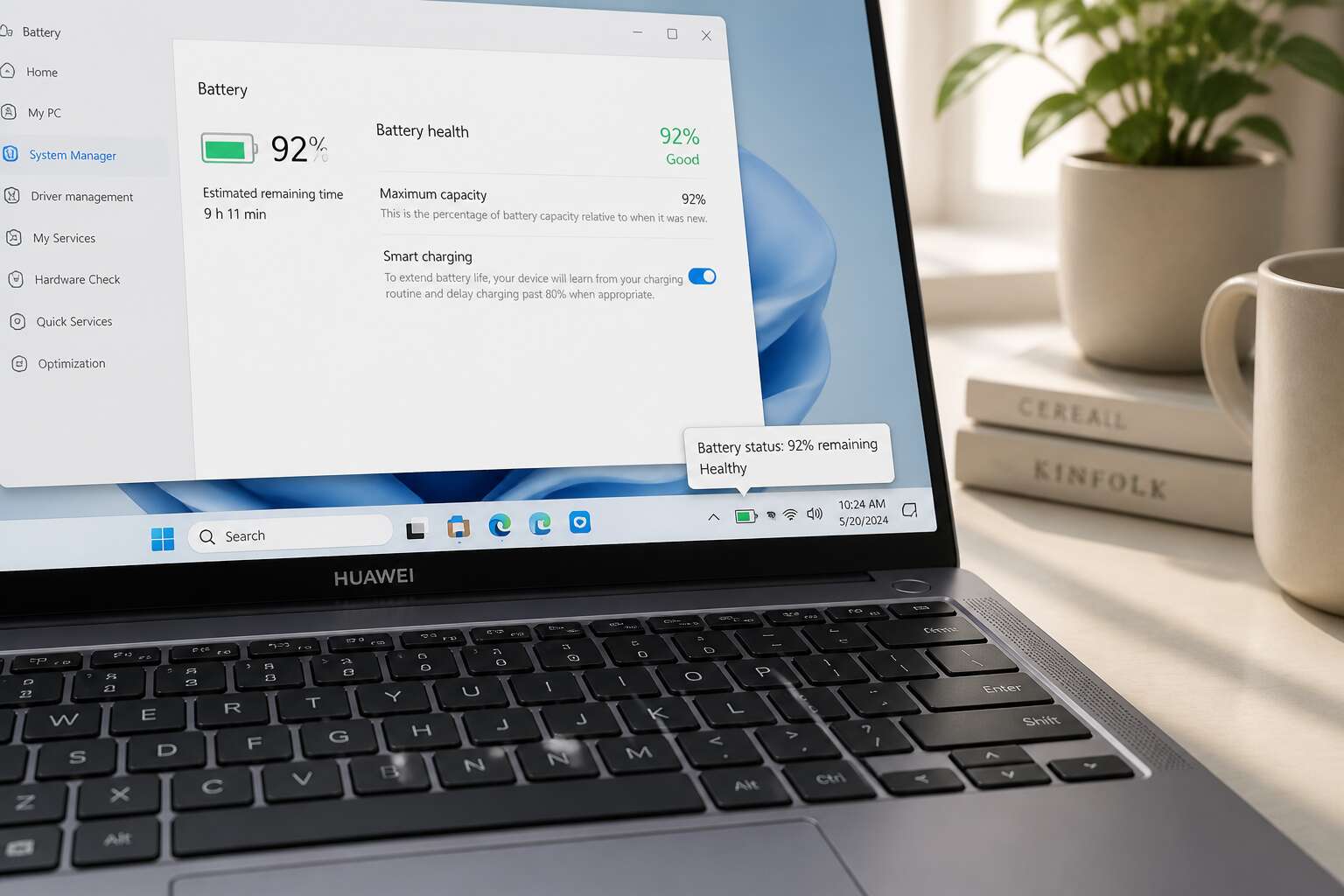
Why Battery Health Monitoring Matters
Signs of a Deteriorating Battery
After 400 charge cycles, a lithium ion battery loses roughly 20% of its original capacity. That is a documented curve, not speculation.
The importance of monitoring your battery health goes beyond avoiding sudden shutdowns. It preserves your ability to work without anxiety. A deteriorating battery announces itself through specific signs.
- Shutdowns when the remaining charge shows 20% or more.
- Battery percentage drops by 10% within seconds.
- Charging stops at a certain level, refusing to complete.
Each sign points to a deeper truth. The battery’s electrochemical processes are breaking down. To learn how to check huawei laptop battery health, you must first acknowledge that decline is not a failure, it is a process. Monitoring gives you agency over that process.
Impact on Performance and Portability
Battery health directly shapes how a Huawei laptop performs away from a wall socket. A degraded battery triggers throttling, where the system reduces power to protect remaining charge. That translates to slower processing, laggy multitasking, and longer compile times. Portability suffers as well. You carry a machine that demands constant charging, negating the purpose of a laptop.
Learning how to check Huawei laptop battery health gives you control over these hidden limits. Instead of guessing, you see the actual wear percentage and design capacity. This insight matters for professionals who rely on battery life during flights or client meetings. Monitoring turns a vague fear of failure into a clear plan, whether that means adjusting settings or planning a replacement.
Built-In Huawei Diagnostic Tools
Accessing the PC Manager App
Few users realise the diagnostic depth inside Huawei’s PC Manager. This app commands battery oversight. Open it from the Start menu or search bar. The dashboard shows battery status, but the real value lies in the built in tools. Navigate to “Device” then “Battery.” Here, you can learn how to check huawei laptop battery health by triggering a diagnostic that analyses charge cycles, cell wear, and thermal patterns.
For a structured walkthrough:
- Launch PC Manager and confirm it is updated.
- Go to “Device” then “Battery.”
- Select “Check” to run the diagnostic.
The report displays a health percentage, comparing current capacity to original design. In South Africa, where load shedding tests battery reliability, knowing how to check huawei laptop battery health is practical. The diagnostic flags voltage drops or excessive heat, offering clarity without guesswork. This method prevents shutdowns and extends lifespan.
Reading the Battery Health Report
That diagnostic report is pure electrochemical truth. A health percentage above 90% signals a robust cell. Below 80%, your battery is nearing retirement age. This matters intensely when load shedding hits and you need every minute. The report reveals charge cycles and cell wear. It flags voltage drops that point to a recalcitrant cell. It also shows thermal patterns, so you can see if your system runs too hot.
Reading the report requires no PhD:
- Check the big health percentage.
- Compare the cycle count to the design limit.
- Scan the temperature graph for anomalies.
Knowing how to check huawei laptop battery health via these built-in tools beats guesswork. The data tells you exactly where you stand.
Using the BIOS Diagnostic Screen
The BIOS diagnostic screen is a deeper layer of introspection. Press F2 during startup and the hardware level menu appears, bypassing the operating system entirely. This tool communicates directly with the embedded controller. For battery specifics, it offers voltage readings and a simple pass or fail status. That becomes vital when load shedding forces an abrupt shutdown and Windows itself refuses to boot properly.
The diagnostic screen usually reveals the following:
- Cell charge levels
- Battery temperature thresholds
- Hardware validation status
It does not provide the granular cycle counts or wear percentages. Those belong to the PC Manager app. But knowing how to check huawei laptop battery health through this route gives you a fallback when software tools fail. The BIOS confirms the battery is electrically sound or flags deeper problems with the embedded controller.
Resetting the Battery Gauge
The battery gauge, left alone for too long, drifts from reality. It reports percentages the battery no longer holds. Resetting the gauge forces the system to relearn the true boundaries of its own capacity.
This calibration lives inside the same Huawei diagnostic suite you already have access to. You do not need external software. The process demands a full discharge, then an unbroken recharge. When the percentage bottoms out, the system will shut itself down. Do not intervene.
- Disable sleep and hibernation in your power settings to ensure a complete drain.
- Keep the charger unplugged until the system forces a shutdown.
- Reconnect the charger and leave the laptop untouched for two hours.
After this cycle, the gauge aligns with physical reality. The next time you ask how to check huawei laptop battery health, the numbers you read will reflect actual wear, not accumulated guesswork.
Command-Line Methods for Advanced Users
Generating a Battery Report with PowerCfg
PowerCfg is a lesser known path to revealing a battery’s inner state. To generate a battery report, open Command Prompt with administrator rights and execute `powercfg /batteryreport`. The command writes an HTML file to your current directory, often C:WindowsSystem32. Move it to a readable folder if needed. For anyone seeking how to check Huawei laptop battery health, this report holds full charge capacity, cycle count, and recent usage patterns. I appreciate its directness. Here is the sequence:
- Press Windows key and type `cmd`.
- Right click Command Prompt and select Run as administrator.
- Type `powercfg /batteryreport` and press Enter.
- Open the saved file in your browser.
The data reveals a battery’s true temper without any extra software.
Understanding the Windows Battery Report
The raw numbers in the Windows battery report deserve a second look. For anyone wondering how to check Huawei laptop battery health, the answer lies in interpreting what the operating system records. The report lists design capacity and full charge capacity in milliwatt hours. The gap between them shows accumulated wear. Cycle count appears as well, but treat it as a rough guide rather than the final word.
Key figures to examine:
- Design capacity: the battery’s original charge.
- Full charge capacity: what the battery currently holds.
- Cycle count: the number of complete discharge and recharge loops.
I find the recent usage section useful too. It logs charge levels over the past days, which reveals if the battery drains too quickly. Compare these numbers over time, since a single snapshot only tells part of the story.
Analyzing Cycle Count via Command Prompt
Most users will never see the raw cycle count hidden within a Huawei laptop, but the Command Prompt exposes it in seconds. For anyone wondering how to check huawei laptop battery health, this route offers precision that graphical tools sometimes hide.
Open the HTML report generated by powercfg and scroll to Battery Information. The cycle count sits right there, next to design capacity and full charge capacity. This number tells you how many complete discharge and recharge loops the battery has survived.
- Track cycles over months instead of a single snapshot.
- Compare cycle count against full charge capacity to gauge wear pace.
- Remember that partial charges count differently than full loops.
I usually check this first when a battery seems off. A high cycle count with a healthy full charge capacity signals remaining life. A low count with poor capacity points to a different fault entirely.
Automating Health Checks with Scripts
Whenever someone asks me how to check huawei laptop battery health, I point them toward the manual tools first. But advanced users deserve better than a monthly ritual. Automating the process frees you from memory and turns raw data into a trend line.
Write a simple script that runs a powercfg report, scrapes the capacity values, and logs them to a file. You can schedule that script with Task Scheduler or cron. I prefer a weekly run, always at the same moment.
Your script can perform several actions without your hands on the keyboard:
- Create a fresh battery report.
- Extract full charge capacity and design capacity.
- Calculate the wear percentage.
- Append the timestamped result to a CSV file.
After a month, open that file and watch the wear pace. That is how to check huawei laptop battery health without surrendering your afternoon to a blinking cursor!
Interpreting the XML Output
After a script or a manual powercfg /batteryreport command, you are left with an XML file. I often open it in a browser, but for deep interpretation, a text editor is better. The file holds several key values that appear as tags.
- DesignCapacity: the original capacity from the factory.
- FullChargedCapacity: what the battery can hold now.
- CycleCount: how many times the battery has been charged.
For anyone asking how to check huawei laptop battery health, these three numbers provide the answer. A full charge capacity at 70% of design means your battery has aged noticeably. The XML output does not simplify anything; it presents raw data without judgment. That is exactly why advanced users prefer it.
Comparing Reports Over Time
Here is the part where I turn into a digital hoarder. I keep every battery report I generate, filed by date. The command line makes this easy. Run powercfg /batteryreport with an output path that includes the date, such as powercfg /batteryreport /output “C:battery_2025_03.html”. Then run it again next month!
What are you looking for across these files? Track three values:
- Design capacity, which should stay static.
- Full charge capacity, which should not drop sharply within weeks.
- Cycle count, which should rise steadily as you charge.
If full charge capacity drops 10% in two months while cycle count barely moves, suspect a calibration issue. If both move together, normal aging. For anyone learning how to check huawei laptop battery health, this longitudinal view beats a single snapshot. A one time reading gives the current state. A folder of reports gives the trajectory. That trajectory is where the truth lives.
Third-Party Software for Battery Analysis
Popular Battery Testing Applications
While Huawei’s native diagnostics cover the essentials, third-party software reveals a deeper level of detail. For South Africans who juggle work during load shedding, every percentage of battery capacity counts. That is why learning how to check huawei laptop battery health with external tools can expose hidden problems, such as uneven cell voltages or slow charge acceptance.
Several applications stand out. BatteryInfoView shows design capacity against full charge. HWiNFO delivers sensor readouts including temperature and wear level. BatteryMon plots discharge patterns.
- BatteryInfoView: lightweight, shows cycle counts.
- HWiNFO: professional grade data.
- BatteryMon: visual discharge graphs.
These tools add insight that standard reports omit. They turn how to check huawei laptop battery health into a daily practice. When you monitor regularly, you catch degradation early and keep your laptop dependable.
Using HardwareInfo to Monitor Cells
A lithium cell quietly loses balance long before the system flags an error. That is why monitoring raw cell data matters. When you learn how to check huawei laptop battery health through HardwareInfo, you shift from surface percentages to the actual chemistry at work.
HWiNFO reads individual cell voltages, exposing variance that standard reports ignore. A spread of more than 0.05 volts between cells signals uneven stress. For anyone charged with keeping a laptop alive through extended outages, this detail proves essential.
I have watched a battery with a healthy wear level refuse to hold power, simply because one cell lagged behind. Per-cell tracking replaces guesswork with precise observations. No warnings, no drama, just the numbers.
BatteryInfoView for Detailed Statistics
A battery’s true condition hides in its minute fluctuations, not its reported percentage. When you learn how to check huawei laptop battery health through BatteryInfoView, you begin with a simple premise: every battery produces data. This tool records voltage sag, charge current, and the slow creep of full charge capacity. It catches the moments between charge cycles where a cell stumbles. The interface feels unadorned, but its depth rewards patience.
I often rely on its refresh rate to catch transient dips that other software smooths away. BatteryInfoView stores snapshots, allowing you to compare a cold boot against a full throttle session. A single reading means little; several readings, taken under different loads, reveal the pattern. The numbers carry the information.
- Discharge rate under CPU load
- Voltage drop at peak demand
- Remaining capacity at each interval
Mobile Apps for Remote Monitoring
Your laptop’s battery does not stop reporting when you close the lid. Mobile companion apps from manufacturers and third parties now reach into the battery management system over Wi-Fi or Bluetooth, translating raw telemetry into a readable status screen. This matters when your Huawei laptop sits in a backpack during a meeting, or charges unattended in another room. You can check the charge curve and temperature without touching the machine.
Most apps pull data only when the laptop is awake, so do not expect live telemetry during sleep. The convenience is real. A typical app view might show:
- Current charge percentage and estimated runtime
- Battery temperature trend over the last hour
- Full charge capacity versus design capacity
When you ask how to check huawei laptop battery health, these mobile tools answer with immediate visibility. The laptop still does the work, but your phone becomes the display.
Evaluating Software Reliability
The market for third-party battery tools is crowded, filled with everything from polished utilities to abandoned side projects. Some software simply reads the same Windows data you can get from PowerCfg but packages it in a friendlier interface. Others attempt deeper hardware probing, which can be hit or miss. When you ask how to check huawei laptop battery health, you want a tool that gives consistent, accurate readings, not one that invents problems to sell you a fix.
Reliability largely comes down to the source. Established developers with a long history of updates are safer bets than obscure downloads from forum links. Software that requires elevated permissions deserves extra scrutiny, since it has deep access to your system. Look for tools that clearly state their data sources. A quality utility will show the raw design capacity, the current full charge capacity, and the wear level without fluff. If a program reports wildly different numbers each time you run it, treat its output with suspicion.
A dependable tool should also let you track history over time. Static readings are only snapshots, whereas a good utility will log each session for later comparison. Before installing anything, check the user forums for complaints about false positives or system instability. The goal is clarity, not another background service eating resources. A lean, focused program that respects your hardware is worth more than a dashboard full of dubious graphs. Prioritize function over flash, and you will get honest numbers.
Interpreting Health Data and Knowing When to Replace
What is a Healthy Battery Percentage?
When you check the battery health report, the capacity percentage matters most. A healthy Huawei battery stays above 80% after two years of normal use. I have seen laptops at 95% health perform admirably, while anything below 70% feels sluggish during daily tasks.
Interpreting this data requires context. A battery at 85% might still last a full workday, but a 75% reading indicates accelerated degradation. Here is a practical guide:
- Above 80%: excellent, no action needed
- Between 60% and 80%: monitor closely
- Below 60%: consider replacement soon
Knowing when to replace depends on your workflow. If you are always near a power outlet, 70% is tolerable. But for mobile professionals in South Africa, load shedding changes that calculation. Learning how to check huawei laptop battery health regularly gives you foresight to act before failure.
Identifying Abnormal Wear Patterns
Battery health reports rarely tell the whole story at first glance. A single percentage point can hide erratic voltage dips or sudden capacity drops. Learning how to check huawei laptop battery health matters less than knowing what the numbers actually signify. I have seen reports show 82% capacity while the battery dies at 40% charge. That disconnect signals abnormal wear patterns. Watch for these red flags:
– Cycle count exceeding 500 with rapid health decline
– Charging stops unexpectedly below 80%
– The reported capacity changes more than 5% between checks
These indicators point to failing cells rather than normal degradation. In South Africa, load shedding forces laptops through frequent charge cycles, accelerating wear. A consistent pattern of steep capacity loss over two consecutive reports warrants closer attention. The health percentage is a snapshot, not a verdict.
Calibrating Your Huawei Laptop Battery
The health percentage is a starting point, not a final answer. A battery that reports 80% capacity but drains to zero in an hour has a real problem. The discharge curve matters more than the static number. Watch how quickly voltage drops under load. If the slope steepens, the cells are weakening.
Calibrating your Huawei laptop battery fixes the gauge, not the chemistry. Follow these steps:
1. Discharge the laptop to 5% or less.
2. Charge it to 100% without interruption.
3. Repeat the cycle after two weeks.
Calibration resets the fuel gauge, forcing the battery to relearn its true capacity. Do this monthly for accurate reports. However, calibration cannot repair a failing cell. When the health percentage drops below 70% and the battery dies at 30% charge, replacement is the only option. Knowing how to check huawei laptop battery health is step one; interpreting the data is step two. The ritual becomes routine, but the verdict remains clear.
How to Replace a Huawei Laptop Battery
Health data means little unless you read it against usage. A 78% capacity reading on a three year old machine differs from the same number on a six month old one. How to check huawei laptop battery health gives you the raw figure. Context gives you the verdict. Replacement becomes necessary when the discharge curve collapses. If the laptop dies before the 20% mark while the health percentage still shows above 65%, the cells are failing unevenly.
Replacing the battery is a mechanical task.
- Power off the laptop and remove the bottom cover.
- Disconnect the battery connector and unscrew the old unit.
- Slide it out, connect the replacement, and fasten the screws.
- Replace the cover.
The process takes fifteen minutes. The health percentage will not improve. The runtime will return. Many users learn how to check huawei laptop battery health, then ignore the number until failure.



0 Comments