The Science Behind Battery Longevity
How Lithium-Ion Batteries Age
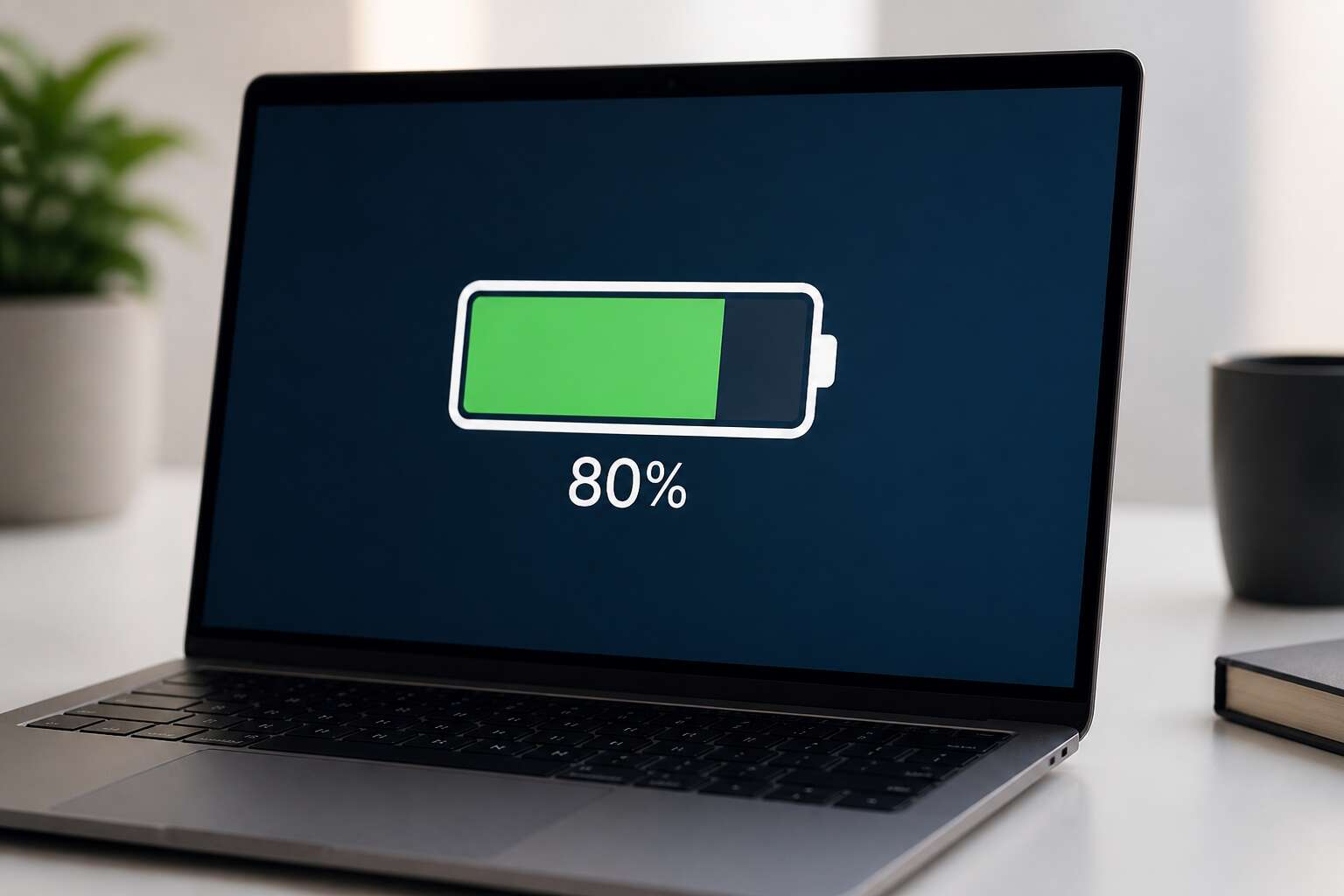
Battery University reports that charging to 80 percent capacity can double a lithium ion cell’s cycle life. When you set laptop battery charge 80 only, you cap the maximum voltage. This limit changes the aging curve!
High voltage drives chemical side reactions. The electrolyte oxidises at the cathode, creating deposits that trap ions. Charging to 100 percent strains the cell with a high state of charge. The strain accelerates with heat.
- Elevated temperatures above 30 degrees Celsius
- Deep discharges below 20 percent
- Full charge voltage for extended periods
These three factors dominate degradation. Your 80 percent cap reduces the third. It lowers internal resistance growth. In South Africa, erratic power from load shedding makes this habit valuable for device health.
Understanding Charge Cycles and Degradation
We often assume a charge cycle means one full drain and refill, but it does not! A cycle accumulates gradually as your notebook uses and recharges power in small pieces. Only when the sum of those pieces hits 100 percent does a full cycle register.
When you set laptop battery charge 80 only, you change this arithmetic. The battery stays in a narrow band instead of dipping to empty and climbing back up. Partial charges become fractions, so a complete cycle takes far longer to accrue. That slowdown directly reduces the pace of chemical aging.
- Cycle life increases when the charge range narrows
- Shallow discharges create less internal stress
Degradation is not linear. It accelerates as cells lose rated capacity. By capping charge, you keep the battery in a comfortable zone, particularly during South Africa’s load shedding when power may vanish.
Finding the Optimal Charge Range
High voltage stresses lithium ion cells independently of how many charge cycles they accumulate. The electrode lattice expands when voltage rises past 4.1 volts per cell, and that expansion promotes cracking. Wafer thin layers of electrolyte decompose onto the anode surface. The result is higher internal resistance and less usable capacity over time.
For most laptops, the practical optimal range sits somewhere between 20 and 80 percent of rated capacity. Manufacturers rarely expose cells to full 100 percent for good reasons. Enforcing laptop battery charge 80 only keeps the voltage below the danger threshold. This is why many business laptops ship with a built in charge limiter.
- Charge above 80 percent accelerates electrolyte oxidation.
- Charge below 20 percent risks copper dissolution during storage.
- The ideal window widens at cooler ambient temperatures.
South Africa’s load shedding means your laptop often endures interrupted power. When you set laptop battery charge 80 only, you align with the chemistry instead of fighting it. The battery spends its life in the middle band. It still delivers full runtime for most tasks, but it ages slower.
The Role of Temperature in Battery Health
Sustained heat above 30 degrees Celsius changes lithium ion chemistry in ways that are measurable and permanent. South African summers push laptops far past that threshold on a regular basis. Laptop battery charge 80 only addresses voltage, but temperature controls the rate of electrolyte decomposition. At 25 degrees, side reactions proceed at baseline. At 35 degrees, they double. At 45 degrees, the anode passivation layer thickens and capacity fades permanently. Thermal history matters as much as charge habits.
Consider where your laptop actually sits during a typical workday:
- On a car seat in direct sunlight while running errands
- On a blanket or couch that blocks the vent fans
- Next to a window where the afternoon sun raises ambient temperature
Each scenario adds thermal stress that no software limiter can undo. Even with laptop battery charge 80 only, a hot laptop will age faster than a cool one at full charge.
Why Storage Charge Levels Matter
What if your laptop’s battery had a built-in therapist telling it to stop overeating? That is essentially what the lithium ion chemistry requests when you choose laptop battery charge 80 only. The difference between 80% and 100% is not a simple percentage point; it is a measurable reduction in electrode stress. At full charge, the cathode is in a highly oxidized state, aggressively seeking electrons. At 80%, the chemical potential relaxes, slowing the parasitic reactions that consume capacity. This is voltage science, not folklore.
The mechanical consequences are equally tangible. Charging to maximum causes the electrode particles to swell. Discharging contracts them. Repeated full cycles induce micro-cracks. Over time, this fractures the conductive network and increases internal resistance. A strict 80% limit reduces the physical strain on the anode material. Lower stress translates to fewer cracks and more usable charge cycles.
Consider the practical numbers for a standard user:
1. A battery cycled between 40% and 80% can often deliver over 1,500 cycles before significant decline.
2. The same cell cycled between 0% and 100% typically manages around 500 to 600 cycles.
3. The capacity loss per cycle at 80% is roughly half that of a full charge.
These figures reflect real-world tests, not manufacturer marketing. The Laptop battery charge 80 only setting becomes a cudgel against the inevitable march of entropy. For a South African user facing frequent load-shedding schedules, this extended cycle life is not a luxury; it is a strategic reserve. The difference is purely chemical, fully mechanical, and entirely worth the adjustment.
How to Configure the Limit on Different Systems
Windows Laptops: Built-in Features and Third-Party Tools
In South Africa, where load shedding strains every device, a single configuration can extend battery life by years. Windows laptops offer distinct paths to achieve laptop battery charge 80 only, though the route varies by manufacturer. Many systems come with built-in utilities hidden in the BIOS or preinstalled apps. For instance, Lenovo Vantage and Dell Power Manager provide direct sliders for charge thresholds. Third-party tools fill the gap for custom builds, offering similar control without vendor software. Some common approaches include:
- Checking the UEFI or BIOS for a battery conservation mode
- Installing the manufacturer’s proprietary power app from the Windows Store
- Using open source utilities like Battery Limiter for precise cutoffs
Each method requires a reboot or a fresh install, yet the outcome is the same: a battery that respects its limits, never reaching the full charge state.
macOS and MacBooks: Optimized Battery Charging
Apple’s Optimized Battery Charging does not advertise itself. It quietly learns your charging routine, waiting to finish the final 20% until just before you unplug. In South Africa, where load shedding makes power schedules unpredictable, this automation is a double-edged sword. The system may still hit 100% at odd hours, but most days it maintains a laptop battery charge 80 only threshold. I find that surprising, yet it works.
To configure this limit on a modern MacBook, you need only:
- Open System Settings from the Apple menu.
- Select Battery, then Battery Health.
- Toggle Optimized Battery Charging on.
There is no manual percentage slider! Apple intentionally hides the algorithms behind a single switch. You trade precision for simplicity, and the feature decides when a laptop battery charge 80 only serves your daily pattern best. If you need more control, you will not find it here.
Linux and Custom Solutions for Power Management
Linux offers no single switch for a laptop battery charge 80 only cap. The control sits in the kernel, and its availability depends on your hardware vendor. Many ThinkPads expose charge_control_end_threshold under /sys/class/power_supply/. A single command writes the limit:
- echo 80 | sudo tee /sys/class/power_supply/BAT0/charge_control_end_threshold
- cat /sys/class/power_supply/BAT0/status to confirm
But the kernel forgets these settings on reboot. For a permanent fix, I create a systemd service that reapplies the threshold at every boot. TLP, a tool many South African Linux users already have, can also enforce the cap if the battery controller is compatible. On some laptops, vendor ACPI methods need a different path entirely. A few business laptops provide a BIOS-level option for a laptop battery charge 80 only threshold. This hands-on method gives you exact control, unlike Apple’s automated system, but it demands documentation hunting.
Popular Brands: Dell, Lenovo, HP, and Their Utilities
South African users of Dell, Lenovo, and HP laptops find different paths to a laptop battery charge 80 only limit. Dell ships Dell Power Manager, where you set a custom charge threshold under Battery Information. Lenovo’s Vantage utility includes Conservation Mode, which holds the battery at 80 percent. HP leans on Battery Health Manager inside HP Support Assistant; it caps the charge to extend lifespan. I have found these utilities buried in preinstalled software, yet they work reliably.
Some models demand more effort. A quick checklist helps orient you:
- Dell: Dell Power Manager, Battery Settings
- Lenovo: Conservation Mode in Vantage
- HP: Battery Health Manager
Each vendor buries the laptop battery charge 80 only switch in a different menu, so dig through your preinstalled tools before the battery fades. If the software route fails, check the BIOS; some business machines expose the same threshold at firmware level!
BIOS and UEFI Settings for Hardware-Level Control
When the operating system hides the threshold, the firmware often whispers the secret instead. Restart the machine and tap the setup key, often F2 or Del. Inside the BIOS or UEFI, look for Power Management, Battery, or Advanced. Some business laptops expose a slider for laptop battery charge 80 only, while others label it as a maximum charge level. This setting lives deeper than any app can reach, so it survives OS reinstalls.
- Open the Power menu.
- Find Battery Charge Limit.
- Select 80 percent.
- Save and exit.
The hardware then enforces the cap without needing background utilities. Many ThinkPads and Dell Latitudes follow this route. Wording varies, but the principle stays constant. Check the manual if the menu seems hidden.
Mobile Workstations and Enterprise Laptop Tools
Enterprise laptops often ship with dedicated fleet management utilities that enforce a laptop battery charge 80 only policy across thousands of devices. Dell Command Update and Lenovo Commercial Vantage give IT administrators central control. These tools do not require visiting the BIOS on each machine.
Mobile workstations, such as the HP ZBook or Dell Precision, include these same enterprise controls. They cater to professionals who need consistent battery behaviour for field work.
- Dell Power Manager offers custom charge thresholds.
- Lenovo Vantage provides a similar toggle.
- HP Sure Recover and Power Manager handle the rest.
The result is simple. Set the limit once, and the system respects the cap automatically. No hidden menus, no guesswork, just a laptop battery charge 80 only configuration that protects the pack during long shifts.
Practical Benefits of Capping Charging at 80%
Extending the Overall Lifespan of Your Battery
Most people never consider that the lithium ion cells inside their machines are finite resources. Capping the charge introduces a discipline that pays dividends over years of use. This practice is not about limiting yourself today, but about preserving a tool for tomorrow. The laptop battery charge 80 only approach reduces the physical strain on the anode and cathode, which are the true workhorses of the power unit.
The practical benefits extend beyond simple component health. You are effectively managing a long term asset. A battery held at a lower state of charge experiences less internal resistance. This resistance is what generates heat and accelerates chemical breakdown. By keeping the charge ceiling lower, you also mitigate the risk of swelling, which is a common failure point in older devices.
This strategy also changes your relationship with power management. You become more aware of energy consumption, which can influence your habits. Consider the direct outcomes of this practice:
– Extended serviceable life of the battery unit before a replacement is needed.
– Reduced long term costs associated with premature hardware failure.
– Better performance consistency during the later years of device ownership.
The choice to use a laptop battery charge 80 only setting is a quiet acknowledgment that every charge cycle is a form of wear. We often chase the convenience of a full tank, but that convenience has a price. This method is a form of foresight, ensuring that the device remains dependable when the initial novelty has worn off. It is a small adjustment with a significant impact on the durability of your equipment.
Reducing Heat Generation During Everyday Use
Few things shorten the pleasure of a new device faster than a hot palm rest. Setting your laptop battery charge 80 only changes heat generation immediately during ordinary tasks. A cell below maximum voltage stops pushing waste energy into the chassis. That matters on a humid Durban afternoon.
During a typical work session with multiple tabs and a video call, the battery delivers steady current without operating at the top of its charge curve. That lowers heat generation inside the enclosure. You notice it in the small moments:
- The underside stays comfortable after an hour on bare skin.
- The fan stays quiet when you open a large spreadsheet.
- The keyboard deck remains cool during a slow charge.
For anyone who has felt a device become uncomfortable after thirty minutes, this is the day-to-day win of using the laptop battery charge 80 only setting. The machine stays pleasant to use even when outside temperatures climb.
Slowing Down Irreversible Capacity Fade
Ever watched a smartphone die before lunch and thought, “Ah, the sweet smell of planned obsolescence”? Your laptop is no different. That 100% charge is a placebo. Keeping a lithium cell pegged at maximum voltage is like holding a spring fully compressed for years. It looks fine, until it suddenly isn’t. The practical benefit of setting your laptop battery charge 80 only is that you stop accelerating the chemical clock.
Electrolyte breakdown and electrode cracking are accelerated by high voltage. The battery’s internal chemistry throws fewer tantrums when it isn’t forced to hold every last electron. Lithium-ion cells prefer a lazy, uneventful existence. When you cap the charge, you reduce the physical stress on the anode. This directly slows down irreversible capacity fade. You trade a few hours of unplugged runtime today for a battery that still holds a respectable charge when your contract ends.
What you actually get from this digital austerity:
– Lower voltage stress on the separator membrane
– Reduced electrolyte oxidation at the cathode
– Fewer micro-cracks in the anode particles
– A battery that won’t die before your laptop does
This is not theory. It is basic materials science. The difference between 4.2V and 4.0V per cell is the difference between a gentle jog and a sprint for the internal components. The battery’s long-term health becomes a matter of firmware restraint, not luck.
The most visible win is that your laptop’s fuel gauge stops lying to you. A capped battery degrades so slowly that the estimated runtime stays accurate for years. An uncapped battery starts showing phantom percentages, dying at 15%, and shutting down mid-email. Capping the charge is the only way to make that predictable. In a country with load shedding, a battery that behaves predictably is worth its weight in gold, and you get it by simply telling the firmware to stop being greedy.
Why It’s a Smart Strategy for Plugged-In Users
The most obvious practical benefit of setting your laptop battery charge 80 only emerges when you treat your machine like a desktop. If your laptop sits on a desk connected to power for weeks at a time, a full 100% charge state is simply unnecessary. It creates a hostile environment for the cells. By capping the limit, you avoid the constant micro-stress of trickle charging and high voltage holding.
Here is what you gain when you stop obsessing over a full meter:
– A significant reduction in heat output during prolonged use, which is a leading factor in component fatigue.
– A more consistent discharge curve when you finally unplug, so the remaining 20% does not drop off a cliff.
– The elimination of constant top-ups that occur when the system drops to 99% and immediately recharges back to 100%.
For users who rarely see the battery icon drop below 80%, the choice is straightforward. The laptop battery charge 80 only setting is the difference between a battery that monitors your usage and a battery that just monitors your stress levels. It keeps the system cooler and the chemical stress lower, which means your machine remains portable when load shedding hits, even if you usually keep it tethered to the wall.
Debunking Misconceptions About Partial Charging
The Myth of the Balanced 100% Charge
Your battery does not require a full 100% charge to stay balanced. That idea is a holdover from older battery chemistry, not a rule for modern lithium-ion cells. The battery management system continuously monitors individual cell voltages and performs balancing during normal operation, often at partial charge levels. You do not need to babysit the process.
In South Africa, where load shedding can interrupt charging sessions, the ability to stop at 80% becomes even more useful. Keeping your laptop battery charge 80 only means less voltage stress and slower capacity fade. The perceived need to hit 100% is not a technical requirement, it is a habit.
- Full charge does not improve battery accuracy; firmware calibrates on its own.
- Partial charging does not create imbalance between cells.
- The 80% limit avoids the highest voltage zone entirely.
Charging to 100% occasionally for calibration is no longer necessary on modern laptops. Trust the system.
Do You Still Need to Calibrate Your Battery?
Defaulting to 100% every day is habit, not necessity. Many owners still believe that draining the battery to zero and charging to full keeps the gauge honest. That belief belongs to the nickel-cadmium era. Modern lithium-ion cells have no memory effect. Your laptop’s firmware collects voltage and temperature data continuously. It recalibrates its own readings without any manual ritual.
I have seen users worry that a partial charge, such as setting your laptop battery charge 80 only, confuses the system. It does not. Partial charging keeps cells in a safer voltage zone. Calibration routines once had a purpose, but they now create wear without delivering accuracy. The controller refines its estimates through normal use, even when you unplug at odd percentages.
Three facts settle the debate:
- Cell balancing runs automatically during every charge session.
- Deep discharges stress the anode and the cathode.
- Battery management systems update their model after each cycle.
Memory Effect: Fact or Fiction for Modern Batteries?
Memory effect is a rumour that outlived its chemistry. Nickel-cadmium batteries genuinely suffered from it. Repeated partial charges caused crystals to form and capacity readings to drift. Modern lithium-ion cells have no such mechanism. The chemical structure prevents it.
Setting your laptop battery charge 80 only does not teach the battery to forget its full capacity. The management firmware samples voltage and temperature hundreds of times per session. It updates its model after every partial charge. The controller knows the true maximum because it measures the cell directly.
- Lithium-ion cathodes do not grow memory crystals.
- Partial charges keep voltage below stress thresholds.
- Firmware recalibration happens automatically.
A laptop battery charge 80 only is simply another data point. The system adapts. The fear of memory effect is unfounded for every laptop sold in the last two decades.
Does an 80% Limit Reduce Your Usable Time?
The fear of losing 20% of battery life keeps many users from enabling a simple setting. Setting your laptop battery charge 80 only does not shrink your daily hours. If you work at a desk, that 20% is theoretical. The battery falls below 80% only when you unplug, and users never see that drop.
Consider the pattern. A morning of spreadsheets or video calls rarely drains a full 80% before lunch. When you do unplug, the discharge curve remains linear. You are not losing capacity. Choosing laptop battery charge 80 only is a different baseline. No magic there!
- The 80% limit lowers voltage, slowing degradation.
- The missing 20% appears only after hours of continuous use.
The misconception rests on a false equivalence. The limit does not reduce usable time. It postpones the day when your battery lasts forty minutes. I know which trade I would make.
When It’s Actually Safe to Charge to 100%
Many users treat a full charge as harmful, yet the charge controller dictates wear. A laptop battery charge 80 only is excellent for pack longevity, but charging to 100% is safe when you unplug soon after. The risk arrives from prolonged maximum voltage.
When is a full charge safe? If you need full capacity for travel, charge all the way. The chemistry tolerates it! The damage threshold appears only when cells stay pinned at top voltage for days at high temperature. That accelerates capacity fade.
- Travel days justify a 100% charge; brief time at full voltage causes negligible wear.
- Desk work aligns with laptop battery charge 80 only, matching prolonged sessions to a lower voltage.
Modern firmware tracks temperature and voltage, so the system stops delivering charge at your chosen limit. A full charge is a valid option, not a failure. Firmware settings determine how the battery handles routine use.
Tips for Maximizing Battery Health Beyond the 80% Rule
Keep Your Operating System and Drivers Updated
Most people obsess over charge limits, yet ignore the software running beneath. Your operating system and drivers directly control how power flows to the battery. A single kernel patch can fix a bug that causes overnight drain. That’s why updating matters even when you keep your laptop battery charge 80 only! I’ve seen framework laptops gain better thermals from a simple BIOS update.
Consider what these updates actually do:
- Refine processor voltage scaling
- Improve fan curves to reduce heat
- Correct battery meter readings
None of this requires manual effort from you. It simply happens when you click update. This works alongside your charge limit.
Adjust Power Settings for Efficiency
Even if you religiously keep your laptop battery charge 80 only, your power plan might be undoing that good work. Windows and macOS both offer aggressive efficiency modes that most users never touch. These settings control how much juice your processor demands, which directly affects heat and battery stress.
Consider switching from “Balanced” to “Power Saver” or “Better Energy” when you’re doing light work. Drop your screen brightness to 70% or lower. Disable keyboard backlighting after sunset. Every watt you save reduces the heat that chemically degrades your cells.
For finer control, try these:
- Limit CPU speed to 50% in your OS power menu
- Enable adaptive brightness and turn off background apps
- Set sleep timers to trigger after 5 minutes of inactivity
These micro adjustments extend the lifespan of your pack, even when your charge cap is already set correctly.
Avoid Extreme Temperatures in Both Directions
Heat damages lithium-ion cells silently. Leave your laptop on a car dashboard in a Johannesburg summer and even a strict laptop battery charge 80 only routine will not prevent swelling. I have seen packs fail this way after just one blazing afternoon. Winter mornings in the Highveld are just as risky, pushing your battery below its safe operating window and causing voltage stress that shortens its lifespan.
Your battery craves moderate temperatures. Keep it away from direct sunlight, radiators, and cold windowsills. When moving between air-conditioned offices and outdoor heat, let the device adjust before heavy use.
- Never charge a freezing battery; it damages the anode
- Remove thick cases during intensive tasks to release heat
- Store the machine in a shaded bag when travelling
Temperature discipline deserves the same attention as your laptop battery charge 80 only habit. Both protect your capacity for years of daily use!
Use Battery Saving Modes for Light Tasks
Most users treat the battery saver toggle as an emergency switch, not a daily tool. That is a mistake. When you are answering emails or browsing the web, the difference between balanced and power saving mode is barely visible on screen, yet the load on your cells drops sharply.
I run light tasks in battery saver mode even when plugged in. That might sound counterintuitive, but it reduces charge ripple and heat, both of which strain the cells. A laptop battery charge 80 only rule works best when the system is not fighting it with constant background demands.
- Lower screen brightness
- Disable keyboard backlight after idle
- Pause background app sync
These small steps lower the system’s power draw. Pair them with your charging limit and you get the full benefit without changing how you work.

0 Comments