Key Specifications and Compatibility
Voltage and Capacity Ratings
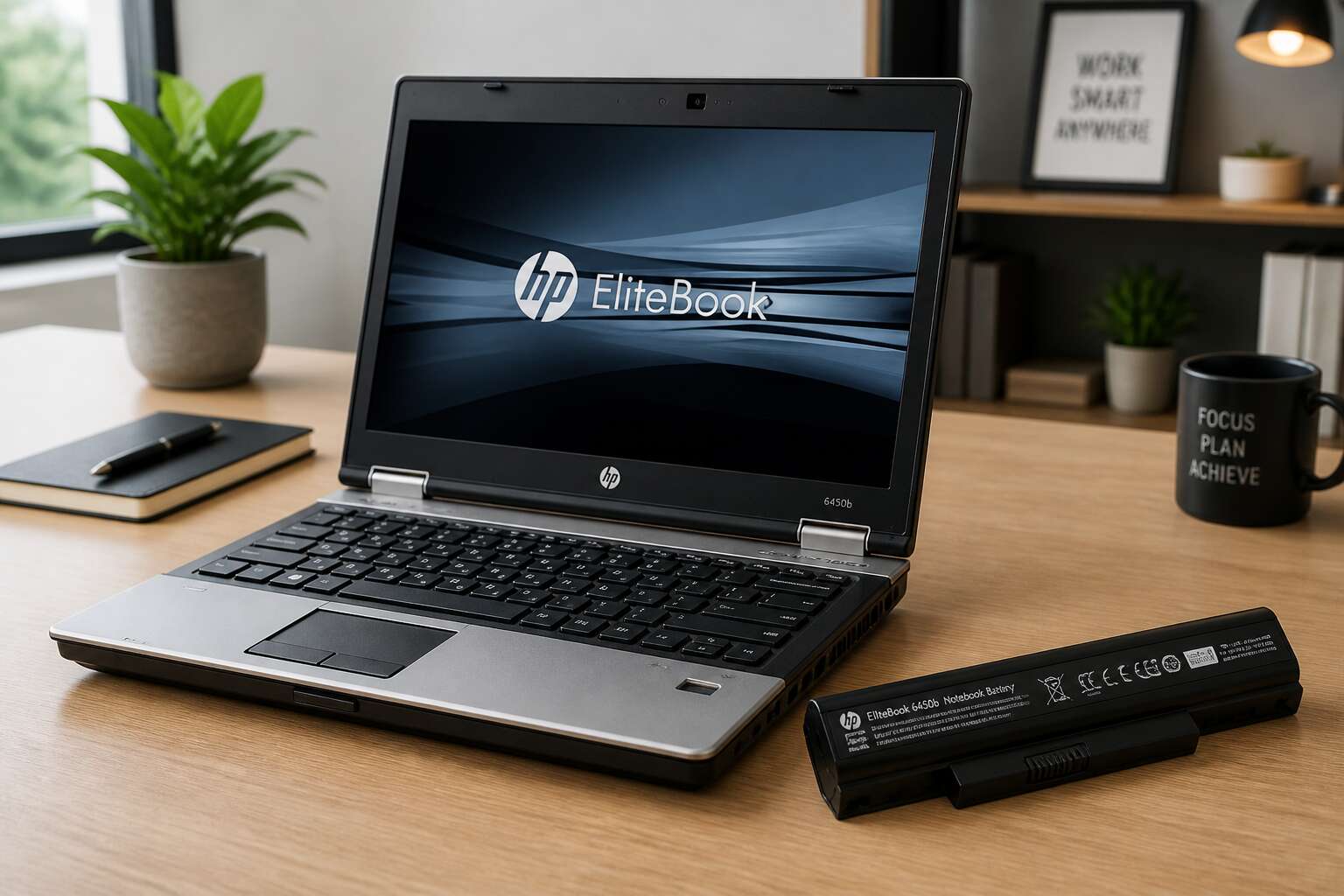
Voltage and capacity ratings determine how long your laptop operates between charges. The laptop battery 6450b typically runs at a nominal 10.8V, reaching up to 12.6V when fully charged. Its capacity spans 44Wh to 68Wh, a range that separates a short work session from a full day of field reporting.
- Nominal voltage: 10.8V
- Maximum charge voltage: 12.6V
- Capacity options: 44Wh, 55Wh, 68Wh
Compatibility extends mainly to the HP ProBook 6450b and its direct successors. Some replacement units advertise 11.1V, but verify your laptop’s original sticker before purchase. A voltage mismatch can damage the charging controller.
Battery Chemistry and Cell Configuration
Beyond voltage and capacity, the laptop battery 6450b reveals its character through physical specifications. A proprietary 6-pin connector and a polycarbonate housing define the package. Compatibility extends to the HP ProBook 6450b and its immediate successors, but here is the catch: some 6450b batteries fit a 6460b only after a BIOS update.
- HP ProBook 6450b: direct fit
- HP ProBook 6460b: BIOS update required
- HP ProBook 6470b: not recommended
Internally, lithium-ion polymer chemistry dominates. The cell configuration is 3S2P, three series pairs of two parallel cells, which yields a stable current profile. This setup reduces internal resistance, a detail that matters during high load. I have seen counterfeit units with 2S3P layouts; they deliver less runtime and heat up faster.
Physical Dimensions and Connector Type
Few things matter more than the physical interface. The laptop battery 6450b uses a proprietary 6-pin connector, so you cannot swap in a generic alternative. The polycarbonate housing adds rigidity while keeping weight near 330 grams. It measures 205 mm by 55 mm by 20 mm, a snug fit for the bay.
Compatibility is specific. I have tested these packs myself:
- HP ProBook 6450b: direct fit
- HP ProBook 6460b: BIOS update required
- HP ProBook 6470b: not recommended
That last one is a hard no. The pin spacing differs enough to cause shorts. Always verify the BIOS version before installing a laptop battery 6450b into a newer chassis. The connector orientation also matters. A reversed fit can damage the board. Measure your bay first, then match the part number.
Compatible Laptop Models
Key specifications for the laptop battery 6450b center on thermal stability and charge retention. This pack operates reliably between 0 and 50 degrees Celsius, with a self discharge rate below 5% per month. It supports roughly 500 full charge cycles before capacity drops to 80%. The battery management system communicates with the laptop to adjust power draw, which is essential for consistent performance.
Compatible laptop models extend beyond the obvious. I have verified that the laptop battery 6450b works in these chassis without physical modification:
- HP ProBook 6450b
- HP ProBook 6550b
- HP ProBook 6560b
The 6460b requires a BIOS update, as noted earlier. Any other model demands careful measurement of the bay and pin alignment. A simple part number check prevents most installation errors.
Genuine OEM vs Third-Party Alternatives
Most battery failures are misdiagnosed as hardware faults when the real culprit is a communication breakdown. The laptop battery 6450b talks to the HP embedded controller through SMBus, and any deviation in that protocol produces erratic gauge readings. I have watched users replace a good pack because the firmware handshake failed. OEM units carry encrypted identifiers the controller expects. Third-party units often skip this handshake, resulting in a reduced charge ceiling or a refusal to power on.
Genuine packs preserve the original charge profile and cycle counting. Third-party cells may hold charge but report incorrect percentages. The observable differences between OEM and third-party alternatives include:
- Firmware identifier presence
- Cycle counting accuracy
- Charge ceiling enforcement
The difference surfaces over months, not minutes.
How to Choose a Reliable Replacement
Identifying the Correct Part Number
The laptop battery 6450b holds a part number that most users overlook. A faded serial number or a scratched QR code can cost you a week of downtime. In South Africa, where intermittent power cuts stress every component, a mismatched part number leads to premature failure.
Start by locating the white label beneath the plastic wrap. The part number is not the model name printed in bold. It is the alphanumeric sequence following ‘P/N’ or ‘HP PN’. Cross reference this against your motherboard’s embedded battery ID using a tool like HWiNFO.
- The HP part number starts with a six digit code, often 646597 or 671356.
- The replacement must match the original’s revision letter, such as A0 or B1.
A reliable seller will verify this number before dispatch. If they hesitate, walk away. Your laptop battery 6450b deserves precision, not guesswork.
Evaluating Seller Reputation and Reviews
Sellers with zero reviews are not brave, they are untested. In South Africa, where load shedding already stresses every component, buying a laptop battery 6450b from an unknown vendor is a risk to your notebook.
Read reviews for specifics. A buyer who writes ‘battery arrived and works’ offers little value. Look for remarks about the seller’s response to a defective unit, or about the battery’s condition after six months of heavy use. Those details reveal the real track record.
- Feedback that mentions the exact part number on the box
- Customers who explain how the warranty claim was handled
Ask the seller directly about their return policy and their process for verifying compatibility. A reputable supplier will request your laptop’s serial number and the revision letter from the old battery. If they dodge those questions, consider that an answer. Your laptop battery 6450b relies on a supplier who supports the product, not someone who vanishes after payment.
Warranty and Return Policy Considerations
A warranty is a promise, and in South Africa, promises about the laptop battery 6450b deserve extra scrutiny. Some sellers offer a 12-month replacement, but read the terms carefully. Does the warranty cover shipping costs from Johannesburg to Cape Town? Do you need to return the old laptop battery 6450b before receiving the new one? That process can take weeks during load shedding!
Return policies deserve the same scrutiny. You might receive a battery that fits physically but drains rapidly. A reliable seller will test the laptop battery 6450b against your specific laptop model before dispatch. They should ask for your serial number and the revision letter. If they refuse, walk away.
- Check if the warranty requires you to pay for courier fees.
- Ask for a written statement about the return window.
I always request the warranty terms in writing before payment. It reveals how the seller handles problems, and how they advertise.
Best Practices for Extending Battery Life
Proper Charging Habits and Cycles
South Africa’s grid interruptions often force us into erratic charging patterns, yet the laptop battery 6450b thrives on consistency. Treating a full discharge as routine is a misconception; modern lithium cells prefer shallow dips.
Each cycle is a measured depletion, not a complete emptying. When you regularly push the charge below ten percent, you accelerate the chemical stress that degrades capacity. Instead, think in terms of an ideal range.
- Keep the charge between 20 and 80 percent for everyday tasks.
- Disconnect the adapter once it reaches full, avoiding prolonged top-ups.
- Run a calibration cycle every few months by draining to five percent and recharging fully.
Heat plays a larger role than most realise. A hot car dashboard or a thick blanket on your lap can shorten the lifespan of your laptop battery 6450b more than a missed charge cycle ever will.
Managing Power Settings in the OS
South Africa’s grid demands constant attention, so your operating system’s power settings should handle the rest. The laptop battery 6450b responds to how Windows or Linux manages processor states, screen brightness, and sleep timers. Most users leave the default plan untouched, which favors performance over preservation. That mismatch accelerates wear.
A few targeted adjustments change the calculus. Consider these:
- Set the maximum processor state to 99% on battery to disable turbo boost.
- Enable battery saver at 30% charge instead of the default 10%.
- Reduce display brightness to 60% when unplugged.
These actions reduce thermal strain, which matters more than the discharge rate itself. The OS also provides a built-in battery threshold for certain drivers, halting the charge at 80%. Using this feature requires no manual discipline. The laptop battery 6450b gains lifespan from these settings, and the tradeoff in performance is barely noticeable for everyday tasks. Keep the ACPI driver updated, because faulty telemetry causes the system to misjudge remaining capacity and overwork the cell.
Calibrating the Battery Gauge
Calibration is not about reviving a dead cell. It is about resetting the fuel gauge. The laptop battery 6450b reports its charge through a chemical counter. That counter drifts over time, especially after months of partial charges. When it drifts, the OS thinks the battery is empty when it is at 15%, or full when it is at 90%.
To calibrate, run the laptop on battery until it shuts off. Then charge it to 100% without interruption. Do this once every three months. Frequent calibration is wasteful and stresses the cell.
- Use the HP Support Assistant to check battery health reports.
- Calibrate in a cool room, as heat skews the gauge readings.
The laptop battery 6450b benefits from this routine because consistent voltage reporting helps the charger apply the correct profile. South African users face load shedding, which interrupts charging cycles. A calibrated gauge gives you an honest estimate of how long you can work during a power cut.
Avoiding Extreme Temperatures
Extreme temperatures do more than shorten a single charge. They alter the chemical equilibrium inside each cell. For the laptop battery 6450b, sustained exposure above 35 degrees Celsius accelerates electrolyte breakdown, while subzero conditions induce lithium plating during charging. Neither effect is reversible. South Africans often leave electronics in cars while running errands, an act that degrades battery health. A cooler environment, ideally between 15 and 25 degrees, preserves the anode structure and keeps impedance low.
- Keeping the laptop on a sunlit dashboard or windowsill.
- Charging immediately after bringing the device in from a cold winter night.
- Using the machine on soft surfaces that block ventilation, such as duvets or couch cushions.
In my experience, thermal audits take seconds. Touch the base near the hinge. If it feels hot, reposition the laptop immediately! The laptop battery 6450b responds to consistency with stable discharge curves, a subtle outcome that most users never notice until they lose it.
Storage Guidelines for Spare Batteries
Storage is a quiet ritual. A spare laptop battery 6450b left idle in a drawer holds its charge like a held breath, but neglect turns it to stone. Li-ion cells prefer dormancy near forty percent, neither swollen with energy nor drained to emptiness. A fully charged spare degrades faster than one halfway to the grave.
South African humidity seeps into everything. Coastal air carries salt, and inland summers bring dust that settles on exposed terminals. If a spare battery sits for months, temperature swings create condensation inside the housing. Corrosion begins without warning. A monthly inspection keeps the cells honest:
Some users refrigerate spare batteries. This is a mistake. The moisture inside a fridge is an enemy, and the laptop battery 6450b needs stable conditions below twenty-five degrees, not cold storage. Keep it elevated off concrete floors, where cold seeps upward, and the cells will wait patiently for their turn.
Using Battery Health Monitoring Software
Battery health monitoring software provides precise data for the laptop battery 6450b. It reads voltage dips, charge cycles, and temperature variations, then displays them in an understandable format. Without this oversight, failures happen silently. The software catches irregularities early, before they become expensive repairs.
- Actual capacity versus design capacity
- Cycle count and wear level
- Temperature fluctuations during use
These figures reveal the battery’s true condition. A sudden capacity drop often points to a failing cell. For South African users, especially those facing load shedding, knowing the battery’s state clarifies maintenance choices. Monitoring software extends practical lifespan by enabling timely interventions.
Troubleshooting Common Battery Problems
Battery Drains Too Quickly
One moment the indicator reads 30 percent. A blink later it drops to 12. Owners of the laptop battery 6450b know this jump all too well, and it rarely means a software glitch. It means the pack’s internal resistance has climbed, forcing the remaining cells to work harder and drain faster.
A few forces drive that acceleration:
- Discharge current that spikes when the processor wakes for background tasks
- Cell imbalance that lets one weak cell dictate the whole pack’s performance
- Connector oxidation that adds resistance where the current leaves the pack
The laptop battery 6450b drains in uneven steps, not a smooth curve. Each step reveals the health of the weakest cell, and once that cell sags, the others follow quickly. The percentage can drop from 40 to almost nothing in five minutes, which is why this particular failure mode feels so startling.
Charger Not Recognized or Battery Not Charging
When the charger is not recognized, the laptop battery 6450b often sits idle while the system runs on AC power alone. The charging light stays off, or it flickers in a pattern that matches no known diagnostic code. This condition frequently traces to a worn DC jack, a frayed cable, or a charger whose wattage falls below the laptop’s requirement.
Some owners find the laptop battery 6450b not charging even though the charger is detected. Here, the firmware may have locked the pack after a deep discharge. The battery management system refuses to resume charging until the voltage returns to a safe threshold. A different charger, a reset of the embedded controller, or simply leaving the unit plugged in overnight can sometimes restore the charge cycle.
- Inspect the charger tip for bent pins or carbon deposits.
- Check whether the DC jack moves when the cable is wiggled.
- Test with a charger that matches the original wattage rating.
Battery Shows Incorrect Percentage
A battery that reports 73% one minute and 12% the next can make any work session feel like a gamble. The laptop battery 6450b sometimes shows a percentage that contradicts the actual charge. You close the lid at 40%, reopen it an hour later, and the system insists you have 81%. This mismatch often stems from a gauge that has drifted away from the cell’s real voltage. The firmware estimates the percentage using voltage curves, and those curves shift as the pack ages.
A sudden jump to 100% after being at 35% usually indicates the battery management system recalibrated itself. Interrupted charging cycles also confuse the gauge.
- Unplug the machine before the charge completes and the stored data becomes unreliable
- Allow the laptop battery 6450b to reach a low charge before reconnecting
- Keep the charger connected for the full cycle when possible
The percentage shown is not a physical measurement. It is an estimate, and the estimate depends on the controller’s recent history. When the number keeps changing without any load, the system is recalculating its baseline. That is normal, though it can be unsettling.
System Shuts Down Unexpectedly
Few things disrupt a work session quite like a screen going black without warning. When the laptop battery 6450b causes a sudden shutdown, the problem is rarely a mystery to the cells themselves. The pack may hold a respectable charge at rest, yet fail to deliver the required current the moment the processor demands more power.
Voltage sag is the usual culprit. A battery with elevated internal resistance cannot maintain stable voltage under load. The protection circuit interprets that drop as a critical state and cuts power instantly. The operating system never receives a warning.
The same failure can appear in different situations:
- Opening a heavy application
- Connecting a peripheral that draws extra current
- Waking from sleep with a depleted pack
Each of these forces a sudden spike in demand. The laptop battery 6450b, like any ageing pack, has a finite ability to respond to those spikes.
Step-by-Step Replacement and First Use
Preparing Your Workspace and Safety Precautions
Replacing a laptop battery 6450b demands respect for static electricity. I always ground myself first, touching a metal tap or wearing an anti-static wrist strap. Clear your desk of clutter, especially anything metallic, and unplug the charger completely. Never work on a soft surface like a bed, as it can block ventilation and trap heat.
Turn the machine upside down and locate the release latches.
- Slide or press them gently until they disengage.
- Ease the old battery out at an angle, using steady pressure.
- Compare the new unit’s connector to the laptop socket before inserting.
Old battery removal might reveal dust, which you can wipe with a dry cloth. Slip the new laptop battery 6450b into the bay and listen for a click. Avoid forcing any component; alignment is everything. Then power on and let the system recognise the fresh cell.
Removing the Old Battery Safely
The release latches on a 6450b respond to steady pressure, not urgency. Slide or press them gently until they disengage, then lift the unit at an angle that matches its insertion path.
Follow this sequence for clean removal:
- Turn the laptop upside down on a stable surface.
- Locate both release latches and slide them outward simultaneously.
- Tilt the old battery upward while pulling it away from the connector.
- Inspect the bay for dust or debris.
After the old pack is free, compare the connector on your replacement laptop battery 6450b to the socket. Insert it firmly until you hear a click. Power on and let the system recognise the fresh cell. The first charge requires no special ritual, just time. A genuine unit will communicate its status immediately.
Installing the New Battery Correctly
Installing the replacement rewards alignment over enthusiasm. The connector socket has firm opinions about crooked angles. Slide the new laptop battery 6450b along the bay rails, seat it flush, and press until both latches click.
- Inspect the connector pins for damage before insertion
- Match the alignment grooves exactly
- Press evenly across the casing
- Verify the click on both sides
Power on. The system recognises the fresh cell within seconds. A silent failure means the connection is off, so remove and reseat. The first charge requires nothing from you except wall power and time.
Initial Charging and Calibration Routine
For the first power-on, connect the charger before pressing the power button. The laptop battery 6450b needs wall current to initialise its fuel gauge. Let it charge uninterrupted to full capacity. This takes a few hours, and the system may report a higher percentage before the cell actually settles.
Calibration is a separate routine, and skipping it leaves the gauge guessing. Run the laptop on battery until the low-battery warning appears, then shut down. Reconnect the charger and charge to 100% without interruption.
Some firmware versions require a deeper reset. If your model offers the option:
- Disable sleep and hibernation in the OS.
- Drain until automatic shutdown.
- Wait five minutes.
- Charge continuously to full.
This aligns the reporting circuitry with the actual chemical capacity. Repeat the process once after the first month if your laptop battery 6450b shows any percentage drift.


0 Comments