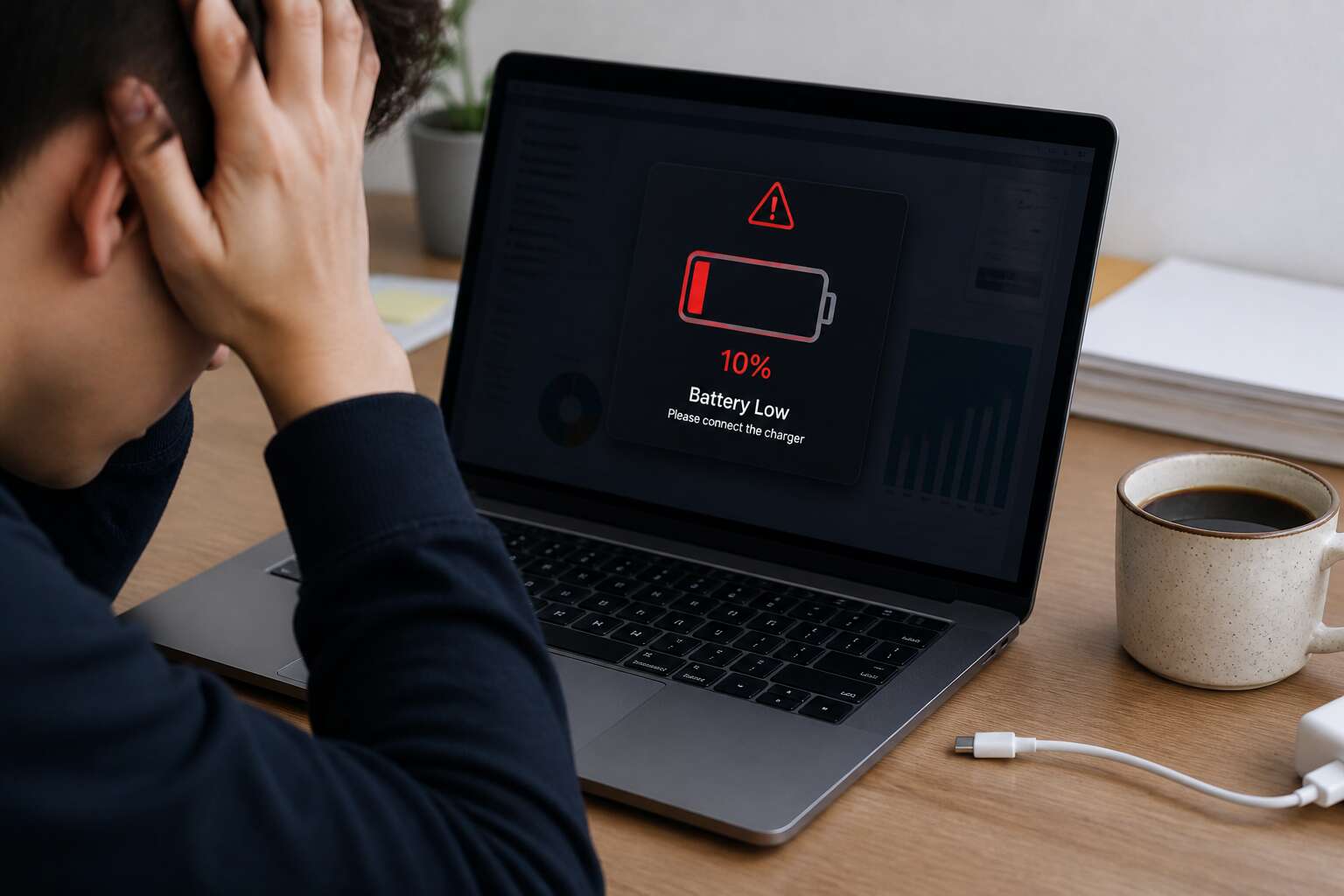
Understanding the Problem of Rapid Battery Drain
What Constitutes Fast Battery Drain?
The sudden death of a laptop at 30% battery is a specific kind of frustration. It interrupts your flow, breaks your concentration, and forces you to scramble for a power outlet. We accept that a battery will degrade over time, but when the meter plummets from full to empty within an hour, it feels like a betrayal. This is the problem of rapid battery drain, a common complaint for many South Africans who rely on their devices for work and study.
What constitutes fast battery drain? It is not a single, fixed number. A battery that lasts three hours on a new machine but only forty minutes on a two year old model is draining fast. The term applies to any scenario where your usage patterns, which once yielded a full workday, now only provide a fraction of that time. The comparison is always against your own past experience.
– A battery that drops 10% or more during a simple 15 minute web browsing session.
– A laptop that shuts down unexpectedly when the meter shows 15% capacity remaining.
– A device that runs hot to the touch even when performing basic tasks like email.
These are all signs that the internal chemistry is struggling. The issue is often a combination of background processes and aging hardware. Software updates demand more processing power, while the physical battery cells lose their ability to hold a charge. The result is that your reliable tool becomes a portable device only in name, tethered to a charger for most of its active life. Understanding this baseline is the first step before you start troubleshooting when laptop battery dies fast.
Typical Battery Lifespan Expectations
Charge cycles are the unit that matters. A full cycle is one complete drain from 100% to zero, or two half drains. Most modern lithium ion cells are rated for 300 to 500 cycles. That translates to two to four years, depending on how hard you work them. When you treat the battery gently, it lasts closer to the higher end.
The slow fade is normal. The problem is when the curve steepens. Heat accelerates chemical breakdown. So does keeping the machine plugged in at full capacity for days at a time. In my experience, these habits can halve the expected lifespan before you notice.
- Light use: browsing and email, gives you three to four years before serious drop.
- Heavy use: video calls and coding, cuts that to two years.
- Constant heat, like gaming or direct sun, can kill a battery in under a year.
That is the yardstick for when laptop battery dies fast. If your machine falls far short of these figures, the cells have failed. Replacement is the next step.
How Operating Systems Report Battery Health
Operating systems are not mind readers. They rely on a chip inside your battery pack. That chip reports a number, but it is an estimate. A calibration glitch can make your laptop think it has 30% left when the cell is already empty. Or worse, the opposite. The result? Your machine holds 7% for an hour, then dies without warning. The real issue is chemical, not digital. When laptop battery dies fast, the OS often hides the truth behind optimistic logs.
Here is what your system tracks:
- Rated capacity versus current full charge capacity
- Charge cycle count and battery temperature
These figures help, but they cannot measure physical degradation. I have seen laptops show 95% health yet shut down at 20% charge. The battery gauge lies. So when laptop battery dies fast, ignore the percentage and trust the trend.
Common Culprits Behind Quick Battery Depletion
High Screen Brightness and Display Settings
A screen set to full luminosity can silently devour more than 30% of your charge before you finish a single spreadsheet. That glaring panel is often the first suspect, yet users rarely connect the visual spectacle to the sudden drain. For South Africans navigating rolling blackouts, the difference between a dimmed workspace and a blazing display becomes a matter of practical survival during those precious unplugged hours.
Beyond raw brightness, display settings like refresh rate and dynamic contrast keep the battery working overtime. Modern laptops default to 120Hz for smooth scrolling, but 60Hz handles documents and browsing with ease. Auto-brightness, when poorly calibrated, fights the surrounding light and keeps the panel brighter than the environment demands. When laptop battery dies fast, these display choices act as the hidden accelerant. The following settings impose the heaviest toll:
- Maximum brightness without adaptive adjustment
- High refresh rate during non-gaming tasks
- Persistent backlight during idle pauses
Power-Hungry Software and Browser Tabs
Open a browser and leave it running. Each tab holds separate workloads that draw power through scripts, autoplay videos, and background polling. I once saw a laptop with twenty tabs lose a quarter of its battery before the user touched the touchpad. The screen was dim, yet the fans spun at full speed!
Software sitting in the system tray compounds the problem. Cloud sync clients, update checkers, and indexers all wake up at random moments. When laptop battery dies fast, these hidden workloads are usually the true cause.
- Browsers with multiple active tabs running heavy web apps
- Background apps syncing, scanning, or updating
- Startup programs that never release memory
The user sees a laptop shutting down, but the operating system sees a steady drain. When laptop battery dies fast, the process list reveals the actual offender. Hardware failures are rare, yet users spend hours blaming the battery.
Aging Battery and Wear Level
There is a quiet tragedy in a battery that dies before its time. I once pulled a five year old laptop from a drawer, a machine that had survived load shedding and long flights. Its battery held less than forty minutes of charge, even with the screen dimmed to a whisper. The lithium ion cells inside had not failed suddenly. They had surrendered gradually, one chemical cycle at a time. When laptop battery dies fast in such cases, the wear level tells the true story.
Each charge and discharge cycle etches itself into the battery’s chemistry. Heat, deep discharges, and repeated fast charging accelerate this electrochemical fatigue. The operating system tracks the wear level as a percentage of original capacity, yet most users never open that report.
Symptoms of advanced wear include:
– Sudden shutdowns at twenty percent charge
– Swelling or deformation of the case
– A battery that charges in fifteen minutes and drains in ten
– Inconsistent capacity readings between reboots
A battery in a hot Durban room or a car boot in Johannesburg will age faster than one kept cool. The storage voltage matters too. A battery parked at full charge for months loses capacity faster than one stored at sixty percent. When laptop battery dies fast, the physical degradation is often silent, a slow funeral conducted inside a sealed aluminium coffin. The user blames the screen or the software, but the cells themselves have simply grown old. They cannot hold what they once promised.
Overheating and Thermal Throttling
Summer in South Africa tests laptops more than it tests humans. Heat arrives through open windows, car boots, and unshaded desks. When laptop battery dies fast, overheating is often the silent accomplice. The processor adds its own warmth, and the afternoon sun compounds it. The battery sits directly in this thermal zone and suffers for it.
Thermal throttling is the laptop’s defensive reflex. The system slows the processor to protect internal components. Performance dips, applications stutter, and the user blames the software. The battery, meanwhile, absorbs heat it was never designed to endure.
A laptop that runs hot shows clear signs:
– The underside feels uncomfortably warm to the touch
– Fans race during simple web browsing
– The chassis stays warm long after shutdown
Heat accelerates chemical breakdown inside the cells. Capacity fades with every overheated session. When laptop battery dies fast, the culprit may be the laptop’s own cooling system rather than the battery’s chemistry.
Diagnostic Steps to Identify the Root Cause
Checking Battery Health Reports in Windows and macOS
A single command can reveal a battery’s true condition. On Windows, opening Command Prompt and typing powercfg /batteryreport generates an HTML file with design capacity and full charge capacity. On macOS, hold Option while clicking the Apple menu, then choose System Information. The Power section shows cycle count and battery condition.
When laptop battery dies fast, these reports separate software glitches from physical decay. Generate one report at full charge, then unplug and wait an hour for a second report. The differences tell their own story. Also note the wear level percentage if your utility displays it.
- Compare the two charge capacities side by side.
- Check the cycle count against the manufacturer’s rating, usually 1000 for modern laptops.
- Look for error flags in the battery status column.
The numbers may look arcane, but they speak clearly enough.
Monitoring CPU and Memory Usage
The battery report reveals physical condition, but it cannot see how the processor is being used. When laptop battery dies fast, the fault often sits with background processes. I open Task Manager on Windows or Activity Monitor on macOS and sort by CPU usage, then by memory usage.
A single runaway process, such as a misbehaving browser extension or a syncing cloud client, can keep the processor awake for hours. The metrics that matter include sustained CPU percentage, memory pressure, and the count of active background operations. Watch for these signs:
- CPU usage pinned above 50% while the laptop sits idle
- Memory pressure in the yellow or red zone on macOS
- Processes named after software you no longer run
Compare those readings over time. A single snapshot misleads.
Examining Power Settings and Profiles
A hidden profile is sometimes the whole problem. Power settings control when the processor throttles, when the screen dims, and when the system sleeps. When laptop battery dies fast, these settings deserve as much attention as the battery itself. Windows calls them plan settings; macOS tucks them away as energy saver options. Most users never open them, which is exactly why the defaults get changed and forgotten.
The diagnostic path is simple enough. I open the power management window and read the active scheme. Then I compare it against a known baseline. The advanced options hold the real clues.
Look for these warning signs:
– Minimum processor state above 10%
– Hard drive and wireless adapter set to maximum performance
– Sleep timer disabled on battery power
Each one adds a slow, constant drain. When laptop battery dies fast and the battery report looks healthy, examine the power profiles before suspecting hardware.
Using Built-in Battery Calibration Tools
Calibration sounds fussy, yet it serves a necessary purpose. Windows laptops hide a built-in battery calibration tool inside the BIOS or UEFI menu. MacBooks address this through the SMC reset process. When laptop battery dies fast, running a calibration cycle forces the system to recalculate the true charge capacity rather than trusting the software’s current guess.
The steps are straightforward:
- Restart the laptop and enter the BIOS or UEFI menu
- Find the battery calibration tool under the power or diagnostics tab
- Run the cycle with the power cord connected
- Allow the full drain and recharge process to finish
The system produces a refreshed capacity estimate once the cycle completes. Calibration does not restore a degraded battery. It reveals how much charge the battery genuinely retains, which clarifies why the health report and the actual runtime differ.
Practical Fixes to Slow Down Battery Drain
Adjusting Power and Sleep Settings
Everyone blames the battery itself when laptop battery dies fast, yet the real problem often hides inside the power plan you configured once and never revisited. Most laptops ship with a “balanced” profile that prioritises performance over longevity, keeping the CPU at full throttle even while you draft a simple email.
Reducing the maximum processor state to 80% when running on battery produces immediate gains. Sleep timers deserve attention too, but not for the usual reasons. Hibernation, the deeper state that writes memory to disk, draws no power whatsoever. Standard sleep still feeds energy to RAM, and a laptop left sleeping overnight slowly wastes charge you will need the next morning.
Managing Startup Programs and Background Activity
Startup programs drain battery life more than most people realise. Every application that launches with Windows or macOS sits in the background, consuming CPU cycles and waking the disk. I have watched a laptop lose ten percent in one hour because a music manager and a cloud sync client were fighting for attention. The fix is to open Task Manager on Windows or System Settings on macOS and inspect the startup list. Disable anything you do not need daily. Background activity goes deeper than that. Some processes, like indexing services or update checkers, run on schedules. They are harder to spot. You can see them in Activity Monitor or Resource Monitor.
- Browser extensions that poll servers.
- Chat apps that maintain many connections.
- Backup tools that scan folders.
Each one contributes to the drain. The cumulative effect becomes obvious when laptop battery dies fast after only light use. Strip the extras and you regain hours of runtime.
Updating Drivers and Operating System
Outdated drivers create extra power draw. When laptop battery dies fast after you close every background app, the remaining drain often comes from system firmware. Update chipset, graphics, and storage drivers. Each new version includes power management fixes that stop components from staying awake without reason.
Operating system updates matter equally. They adjust scheduling and communication with battery hardware. An outdated OS repeatedly polls the same components, wasting charge.
Consider these steps:
– Open Device Manager to check for warning icons.
– Download drivers from the manufacturer’s site only.
– Install OS updates after a quick file backup.
These actions reduce hidden consumption and extend usable runtime.
Reducing Screen Brightness and Enabling Battery Saver
Few frustrations match the moment when laptop battery dies fast despite careful habits. The display remains the largest single consumer of portable power, and most users keep brightness far higher than necessary. Dropping it to around 60 percent often adds an hour of usable work time. Even better, let adaptive brightness respond to your surroundings instead of forcing maximum output in every room.
Battery saver mode works neatly alongside this adjustment. It throttles background processes and trims visual effects without disturbing your active work. Together, these two changes attack the most visible causes of rapid drain.
- Lower brightness manually or enable adaptive display
- Turn on battery saver before your charge crosses 20 percent
These small shifts carry real weight when laptop battery dies fast during ordinary tasks like writing or browsing. The savings compound across a full day.
Disabling Unused Hardware Components
Every radio inside your chassis draws current, even when you are not using it. The Bluetooth module keeps scanning. The Wi-Fi adapter searches for networks. The webcam remains active. These components operate invisibly, yet they drain the battery with quiet persistence. When laptop battery dies fast, the cause often hides in these idle systems.
Consider what you actually need for the task at hand. A wired mouse does not require Bluetooth. A document does not require Wi-Fi. When laptop battery dies fast, these idle radios are often the cause. Disabling them through the function keys or Device Manager removes the drain entirely.
- Turn off Bluetooth when using wired peripherals
- Disable the webcam when no video call is active
- Unplug USB devices that are fully charged or unused
The savings feel small in isolation, but they accumulate! A machine stripped of unnecessary radios runs longer, and the discipline of switching them off becomes a habit that outlasts any single charge.
Long-Term Strategies for Battery Maintenance
Proper Charging Habits to Preserve Battery Health
Most users only consider battery care once the problem becomes visible. The real culprit behind premature aging is often the charging routine. Leaving a laptop plugged in at 100% for weeks, or letting it drop to zero before recharging, creates electrochemical stress. For South Africans dealing with load shedding, this is critical, as frequent power cycling accelerates the wear. I have seen laptops barely a year old show significant wear because of erratic charging! Proper charging habits mean targeting the battery’s sweet spot between 20% and 80%.
- Use the manufacturer’s software to limit the charge to 80% when you are mostly on AC power.
- Unplug the charger during light tasks once the battery is already full.
These adjustments reduce the strain that makes it seem like when laptop battery dies fast, you are suddenly hunting for an outlet. That is the difference between a laptop that lasts years and one that requires constant attention.
Calibrating Your Battery Regularly
Calibrating your battery corrects the software’s estimate of endurance. Lithium batteries don’t have a direct charge counter, they rely on a calculation, and that calculation drifts. A full calibration once every three months keeps the software honest. This matters most when laptop battery dies fast, because a misreported percentage sends you scrambling for a charger at 40% real capacity.
For load shedding schedules, calibration requires planning. The process is simple:
- Charge to 100%, then leave it for two hours.
- Use the laptop on battery until it shuts down.
- Charge back to 100% without interruption.
Do this during a long power outage window, not during a critical deadline. Calibration doesn’t revive a worn battery, but it prevents the panic of a sudden shutdown. Skip it and you’ll keep guessing why the battery percentage drops so quickly.
Replacing the Battery When Necessary
Long-term battery care eventually converges on one decision: when to stop maintaining and start replacing. The chemistry degrades no matter how fastidiously you manage charge cycles. Once the runtime becomes unpredictable, particularly during load shedding, the rational choice is clear. When laptop battery dies fast despite every software tweak, the battery is the bottleneck, not the settings.
- The chassis feels warmer than usual near the battery.
- The battery percentage drops from 50% to 5% in minutes.
- Your laptop shuts down before the OS reports zero.
- Physical swelling appears on the underside.
These signs indicate a failure that no calibration or power plan can correct. The cost of a new battery is lower than the risk of a swollen cell damaging other components.
Considering External Power Banks for On-the-Go Use
External power banks turn load shedding into a manageable inconvenience. I carry a 100W bank that charges my laptop twice over, letting me work from a park bench or a bakkie’s front seat. What a relief to work untethered! The trick is matching the bank’s output to your charger’s wattage, otherwise the laptop draws more than the bank can deliver.
- Confirm the bank supports the same USB Power Delivery profile
- Prefer models with pass through charging for midday top ups
- Keep a 1 metre cable to avoid tugging the port
Still, when laptop battery dies fast even after a full power bank charge, the fault sits inside the cell. No external source repairs that decline. Replace the battery first, then treat the power bank as a daily companion, not a rescue tool.



0 Comments