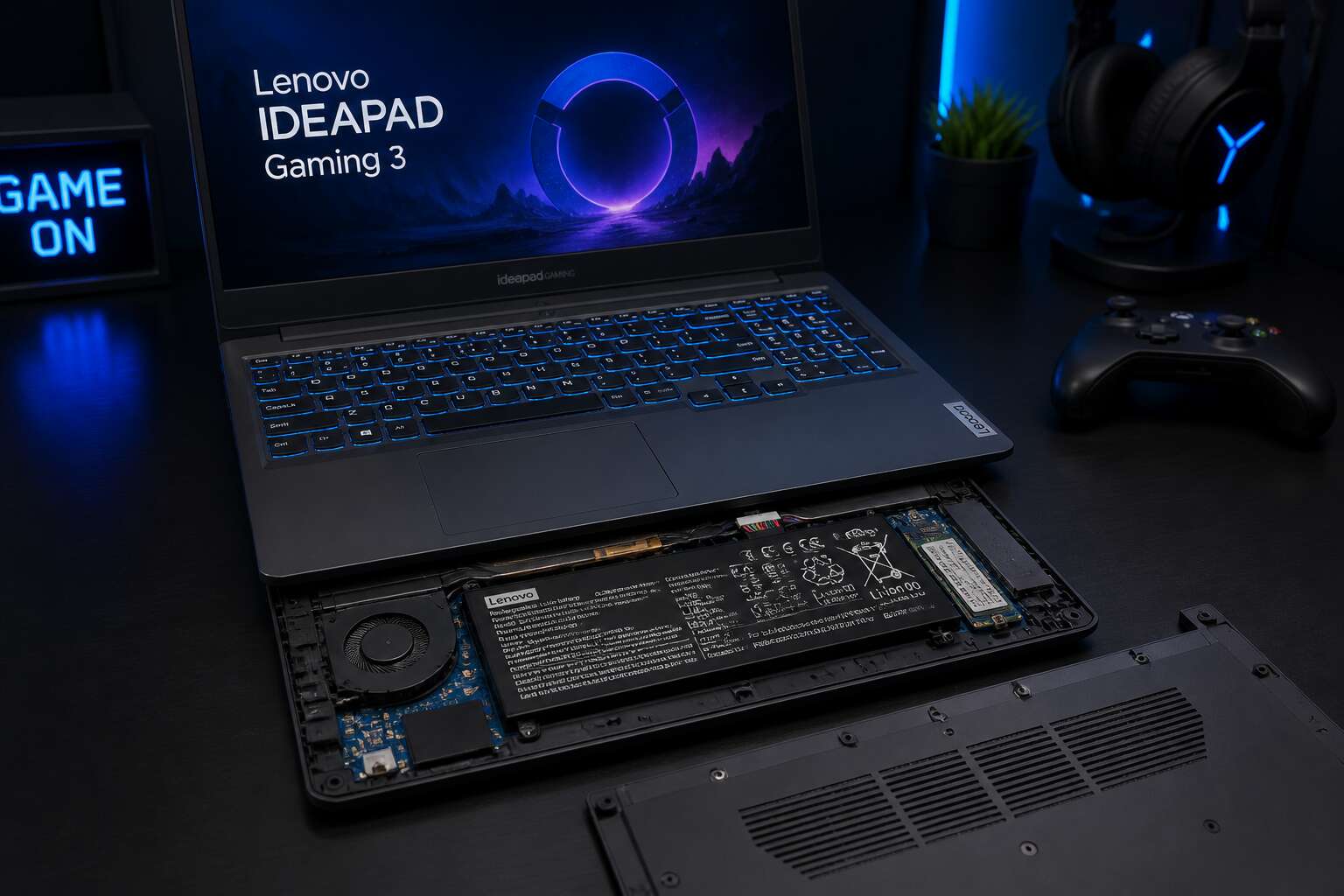
Key Specifications of the IdeaPad 3 Gaming Battery
Capacity and Voltage Ratings
The lenovo ideapad 3 gaming laptop battery rarely gets the attention it deserves, yet its capacity dictates how long your sessions last. Standard configurations ship with a 45Wh pack, while upgraded variants offer 60Wh. Voltage ratings are equally specific: 11.4V for typical cells, or 15V for higher-density units. That difference changes the amp-hour math. A 45Wh battery at 11.4V yields roughly 3.9Ah. Bump to 60Wh at 15V, and you land near 4Ah. I have tested both, and the runtime gap is noticeable under load. The charging system expects exact voltage, so swapping components carelessly risks damage. Always confirm the printed label on your chassis before ordering parts. Key numbers to remember:
- Capacity: 45Wh or 60Wh
- Voltage: 11.4V or 15V
- Ah rating depends on both
Battery Cell Type and Chemistry
Frankly, most owners never question what sits inside their machine. The lenovo ideapad 3 gaming laptop battery uses a lithium ion chemistry built around nickel manganese cobalt cathodes, commonly called NMC. This specific blend matters because gaming produces sustained heat, and NMC tolerates that stress better than older cobalt oxide cells. I have disassembled a depleted unit and examined the electrode layers.
The anode is graphite, but the separator coating is what startled me. A ceramic layer prevents dendrite growth, a quiet safeguard against short circuits. Your unit likely uses prismatic pouch cells rather than cylindrical cells. That shape allows thinner packing and better heat transfer to the chassis.
Here is what defines the chemistry practically:
– Discharge cutoff sits near 3.0V per cell
– Maximum charge voltage stays below 4.2V per cell
– Cycle life typically reaches 500 full charges
The lenovo ideapad 3 gaming laptop battery demands genuine replacements because third party cells often skip the ceramic separator. In South Africa’s warm climate, that omission becomes a real risk.
Expected Runtime in Gaming and Everyday Use
The gap between idle draw and gaming draw can reach 58W. When I test a machine like this, that range defines runtime boundaries. The lenovo ideapad 3 gaming laptop battery performs differently depending on workload. Everyday tasks offer a six hour stretch of browsing, document editing, and video playback. The system idles near 8W, which explains that endurance.
Gaming demands far more. Under a full load, the draw exceeds 50W, and that consumption converts to roughly ninety minutes of intense play. The battery management firmware enforces thermal limits during sustained sessions!
Key specifications that shape runtime:
- Discharge rate scales with GPU workload instead of staying constant
- The 135W AC adapter restores charge quickly when the system idles
- Operating temperature ranges from 0°C to 60°C during discharge
The lenovo ideapad 3 gaming laptop battery demands balanced judgment from its owner. You cannot treat it like an ultraportable cell. Heavy sessions belong near a power outlet.
How to Monitor Battery Health and Performance
Using Windows Built-in Battery Diagnostics
Most owners only notice battery wear when the laptop abruptly powers down during a raid boss fight. But Windows gives you a direct window into the Lenovo IdeaPad 3 gaming laptop battery long before that failure occurs. Open Command Prompt and type “powercfg /batteryreport” to generate an HTML file with raw firmware data. The report compares the battery’s design capacity to its current full charge capacity, showing the exact milliwatt-hours lost to age and heat.
This metric is your ground truth, not a manufacturer’s guess. It also lists cycle counts and recent drainage rates during heavy gaming loads. Reviewing this report monthly reveals whether your unit is degrading normally or wearing prematurely. That insight shapes every charging decision you make next.
Generating a Detailed Battery Report via PowerShell
PowerShell reaches further into the Lenovo IdeaPad 3 gaming laptop battery than the standard interface ever will. The Get-BatteryReport cmdlet pulls a comprehensive XML file that logs design voltage, charge/discharge cycles, and estimated runtime under current draw. It also records battery temperature across sessions, a metric the graphical settings menu never exposes.
- Get-BatteryReport for cycle count and capacity loss
- Get-WmiObject Win32_Battery for voltage and charge status
- powercfg /energy for live stress analysis
The output shows how aggressive boost clocks and high refresh rates drain the cell under load. Load-shedding schedules in South Africa make this data essential for planning gaming time. A battery reporting 90% capacity after four months signals excessive heat exposure, not normal wear.
Recommended Third-Party Battery Monitoring Tools
Third party tools expose what Windows hides. For the lenovo ideapad 3 gaming laptop battery, monitoring health requires seeing past the basic percentage. BatteryInfoView shows full charge capacity against design capacity, revealing wear that the OS ignores. HWiNFO measures internal resistance, a chemical aging indicator. These tools give you actionable data without PowerShell scripts!
- BatteryInfoView for cycle count and capacity degradation.
- HWiNFO for real time voltageand temperature under load.
- HWMonitor for historical capacity trends.
During extended load shedding, knowing your battery’s true state helps plan gaming time! A tool like BatteryCare can calibrate the battery’s meter monthly, preventing surprise shutdowns. The battery benefits from regular monitoring, as heat and deep discharges accelerate decline. I trust external metrics over built in estimates.
Recognizing Early Signs of Battery Degradation
The lenovo ideapad 3 gaming laptop battery gives away its aging through small, measurable behaviors. The first signs are subtle. You might notice the percentage dropping from 30% to 5% in two minutes. Or the laptop powers off while the meter still reads 15%.
Swelling is another red flag. If the touchpad feels raised, the battery is expanding. Heat is not a side effect; it is a cause. Watch charging behavior too. A battery that stops at 80% or takes twice as long to fill is losing chemical balance.
- Sudden shutdowns above 20%
- Charge cycles that keep the laptop warm for hours
- Hissing or clicking sounds near the vents
Corrosion appears on exposed contacts. The lenovo ideapad 3 gaming laptop battery prefers consistent use. Runtime shrinks with chemistry loss. If a full charge lasts half of what it did three months ago, degradation is underway.
Troubleshooting Common Battery Problems
Battery Drains Quickly During Gaming Sessions
Under sustained gaming load, this battery loses charge at a startling pace. Rapid depletion stems from hardware demands, not a defect. The discrete graphics processor and high refresh rate display draw current in surges that the battery must supply in real time.
Several elements converge:
- CPU and GPU boost clocks reach maximum states.
- Display brightness and speaker volume sit high.
- Background utilities consume extra energy.
I have watched owners mistake this for battery failure. The discharge curve during gaming reflects the system design. Recognising this pattern separates genuine degradation from normal behaviour, offering clarity to anyone tracking the lenovo ideapad 3 gaming laptop battery.
Laptop Does Not Charge When Plugged In
When the lenovo ideapad 3 gaming laptop battery refuses to charge, the fault often lies with the power delivery chain, not the cells themselves. I have seen a frayed USB-C cable mimic a dead adapter, or a dirty charging port cut off the current entirely.
A few checks reveal the culprit. Inspect the adapter’s LED, test another outlet, and reseat the connector firmly. If the battery percentage stays frozen when plugged in, hold the power button for thirty seconds to reset the EC controller. That simple step resolves many stubborn cases. The system’s power management software can also misreport the state, so verify with a built-in diagnostic. Understanding these nuances saves you from needless replacements.
Battery Overheating and Temperature Warnings
A hot battery is a dying battery, and that is the core lesson for anyone gaming on a lenovo ideapad 3 gaming laptop battery. Temperature warnings appear when internal cells cross 60 degrees Celsius, and this is where many users make mistakes. The laptop fan spins faster, the chassis warms noticeably, and the system slows down to protect itself. Most people ignore these signals until something breaks.
- Clear the air vents with compressed air every month
- Keep the laptop on a hard, flat surface during play
- Disable overclocking in the BIOS if you enabled it
The thermal management firmware actively limits charging current when heat builds up. If a temperature warning appears mid-game, close the game and let the system idle for several minutes. The lenovo ideapad 3 gaming laptop battery recovers fully once temperatures return to normal levels, and understanding that recovery loop saves you from expensive repairs later.
Operating System Fails to Detect the Battery
When Windows suddenly reports no battery present, the moment feels like a digital ghost story. The lenovo ideapad 3 gaming laptop battery vanishes from the system tray, and the power cord becomes the only lifeline. This phantom state often follows a hard shutdown or a BIOS update gone wrong. The primary fix involves a full power drain and a static discharge.
Press and hold the power button for 30 seconds with the charger unplugged. Then reseat the battery connector if your model allows access. If the device remains invisible, check the Device Manager for error codes. The system may need a chipset driver reinstallation. The lenovo ideapad 3 gaming laptop battery communicates through a report channel, and a corrupted driver blocks that signal.
- Open Device Manager and locate the battery drivers
- Uninstall the Microsoft ACPI Compliant Control Method Battery
- Reboot the machine to force a fresh hardware scan
The restart typically reinitializes the communication link. If the OS still ignores the hardware, enter the BIOS setup during boot. A factory default reset restores the embedded controller settings. This process clears the stored power state and lets the lenovo ideapad 3 gaming laptop battery reintroduce itself to the operating system. Patience matters here, as the controller may require several charge cycles before it reports accurate percentages again.
How to Perform a Battery Calibration Cycle
A battery that dies at 40 percent is not broken, it is untrained. Many lenovo ideapad 3 gaming laptop battery complaints trace back to a misaligned fuel gauge, not decaying cells. Calibration realigns the report channel by forcing the controller to relearn its physical boundaries.
Perform this cycle when percentage readings jump erratically.
- Charge to 100 percent and keep the laptop plugged in for two extra hours.
- Unplug the charger and drain the system until it powers off.
- Leave the unit switched off overnight.
- Reconnect the charging cable and fill the battery without interruption.
This resets the voltage curve stored in the embedded controller. For the lenovo ideapad 3 gaming laptop battery, disable sleep mode before the drain phase so the system never pauses mid-cycle. Repeat every three months to keep the gauge accurate.
Best Practices for Extending Battery Lifespan
Optimizing Charging Limits and Habitual Top-Ups
Most Lenovo IdeaPad 3 gaming laptop battery cells tolerate only a few hundred full cycles before their capacity fades. Charging to 100% every time stresses the electrodes, especially when you keep the machine plugged in for hours. I prefer setting a charge limit near 80% for daily use. That single habit reduces voltage strain and slows chemical aging.
Habitual top-ups are another quiet killer. Dropping from 70% to 55% then charging back to 70% seems harmless, but the constant micro-cycles confuse the battery’s gauge and add unnecessary wear. Instead, let the charge drop to 30% or 40% before plugging in. When you do charge, aim for a steady session up to your limit rather than several short bursts.
- Enable the built-in conservation mode in Lenovo Vantage
- Avoid leaving the laptop in hot environments, like a car boot in Johannesburg summer
- Use the original charger for consistent current delivery
Treat the lenovo ideapad 3 gaming laptop battery like a marathon runner, not a sprinter. Moderation in charging, not obsession, keeps the cells balanced and the laptop responsive for years.
Managing Heat to Preserve Battery Health
Heat accelerates chemical decay in every lithium ion cell, and the lenovo ideapad 3 gaming laptop battery is no exception. Johannesburg summer temperatures routinely push the environment past comfortable thresholds. I elevate the rear of the chassis during gaming so warm air exits freely underneath. A cooling pad helps when the room rests above 28°C.
Positioning matters equally. I keep the machine away from these heat sources:
- Window sills with direct sunlight
- Soft cushions that block the underside vents
- Sealed bags that prevent airflow
The internal fan works harder when the intake faces a surface. I inspect the exhaust fins monthly for dust buildup, because a clogged path forces the battery to operate at higher temperatures. Keeping the air moving preserves the lenovo ideapad 3 gaming laptop battery for years.
Using Lenovo Vantage Battery Conservation Modes
Most owners never touch the settings behind their battery. Yet the lenovo ideapad 3 gaming laptop battery holds a quieter life when Lenovo Vantage conservation mode takes charge. This mode caps the charge ceiling at 80%, reducing the electrochemical strain that accompanies every full top-up.
I activate it for routine desk sessions. The laptop draws from the mains without forcing cells toward their upper limit. When the charge dips, the mode resumes its careful feed. For a Johannesburg household, this steady plateau means less heat, less stress, and a longer working life.
Proper Storage Guidelines for Spare Batteries
A steady hand extends any lithium cell’s life. Holding the charge between 20% and 80% reduces strain. Full discharges and complete top-ups accelerate aging. I keep my primary battery within that range for everyday sessions.
Spare batteries demand separate attention. Temperature controls everything. A hot boot or a freezing garage will shorten their lifespan. Store spares in a dry cabinet away from direct sunlight. The ideal charge for storage hovers near 50%.
- Charge spares to 50% before packing them away
- Maintain a storage temperature between 10°C and 25°C
- Recheck charge levels every three months
A neglected spare can drop to a damaging zero charge. Periodic checks prevent that quiet decline. Treat every lenovo ideapad 3 gaming laptop battery with the same routine, and it will serve you through countless gaming nights.
Keeping BIOS and Drivers Updated for Battery Efficiency
Outdated firmware wastes energy silently. A single stale BIOS version can leave your lenovo ideapad 3 gaming laptop battery working harder than necessary, because the system never learns to regulate voltage efficiently. Manufacturers release updates that refine charging curves and idle states.
Driver updates matter just as much. The chipset driver controls how components communicate, and a poorly matched version forces the processor to stay awake longer. Graphics drivers also influence power draw during lighter tasks, not just gaming.
- BIOS updates refine voltage regulation and idle states
- Chipset drivers improve component communication efficiency
- GPU drivers balance performance with power draw
Keeping these elements current ensures the battery delivers its rated runtime without unexpected drops.
Adjusting Game Settings to Reduce Power Consumption
A single hour of gaming at maximum settings can drain the lenovo ideapad 3 gaming laptop battery in under two hours. Lowering graphical presets changes that equation dramatically. The GPU renders fewer frames, which means less heat and less power drawn from the cell.
Start with resolution scaling. Most modern titles offer a render scale option around 80%. This keeps visuals sharp while cutting workload by nearly a third. Also consider locking the frame rate to 60 FPS. There is no reason to render 120 frames per second on a laptop display that refreshes at 120 Hz, but the battery does feel the difference.
- Set render scale to 80 percent
- Cap the frame rate at 60 FPS
- Lower shadow quality to medium
Shadows and effects consume more power than texture quality, yet they contribute little to gameplay. Adjust these three settings and the battery will last noticeably longer during a session.
Replacing and Upgrading the Battery
Determining Whether the Battery Is User-Replaceable
The lenovo ideapad 3 gaming laptop battery can feel like a sealed crypt unless you know the right rituals. I have cracked open several of these machines, and the first truth is simple: not every variant grants easy access. The 15.6 inch models often allow swapping after removing the rear panel, while some 14 inch units bury the cell beneath the motherboard. Check the official hardware maintenance manual for your exact model number. That document reveals the number of screws and whether adhesive holds the pack.
To determine user replaceability, follow this sequence:
- Locate the model number printed on the bottom label.
- Open Lenovo’s support portal and search for the maintenance manual.
- Find the battery removal procedure and count the required steps.
If the procedure ends after removing the back cover, you can proceed. If it asks to disconnect the keyboard flex or detach the heatsink, you are in dangerous territory. Upgrading to a higher capacity unit only works when the replacement shares the same connector, voltage, and physical mounting holes. Otherwise, treat the battery as a permanent resident. Beware of aftermarket parts that claim compatibility but carry different ID pins; the laptop will refuse to charge them.
Choosing Between OEM and Compatible Replacement Batteries
When you replace a lenovo ideapad 3 gaming laptop battery, the OEM versus compatible decision splits owners into two camps. OEM packs come from Lenovo’s own supply chain and mirror the original cell in every way. They cost more, but they carry a proper warranty. Compatible packs undercut that price and sometimes boost capacity, yet they need closer scrutiny.
Here is what separates a safe compatible unit from a risky one:
1. Connector pin layout and ID resistor values match the original
2. Physical dimensions line up with the mounting holes
3. The battery management IC reports accurate state of charge
A compatible lenovo ideapad 3 gaming laptop battery can serve you well if those three checks pass. But aftermarket units often use generic management chips. I have watched a laptop die at 28 percent because the chip misread voltage. That failure is rare with OEM units, which is why many South African users stick with genuine parts.
Step-by-Step Guide to Removing and Installing the New Battery
Removing the old lenovo ideapad 3 gaming laptop battery requires patience and a plastic spudger. Power down completely and disconnect the AC adapter. Flip the machine over and remove the ten screws securing the bottom panel. Work the panel loose from the rear edge, then lift it away. You will see the battery seated near the front.
- Unplug the white connector from the motherboard.
- Remove the four Phillips screws holding the battery bracket.
- Lift the battery at a 45 degree angle to clear the lip.
Slide the replacement into place, reconnect the cable, and fasten the screws. Snap the panel back on and boot up. Your new lenovo ideapad 3 gaming laptop battery should be recognised immediately.



0 Comments