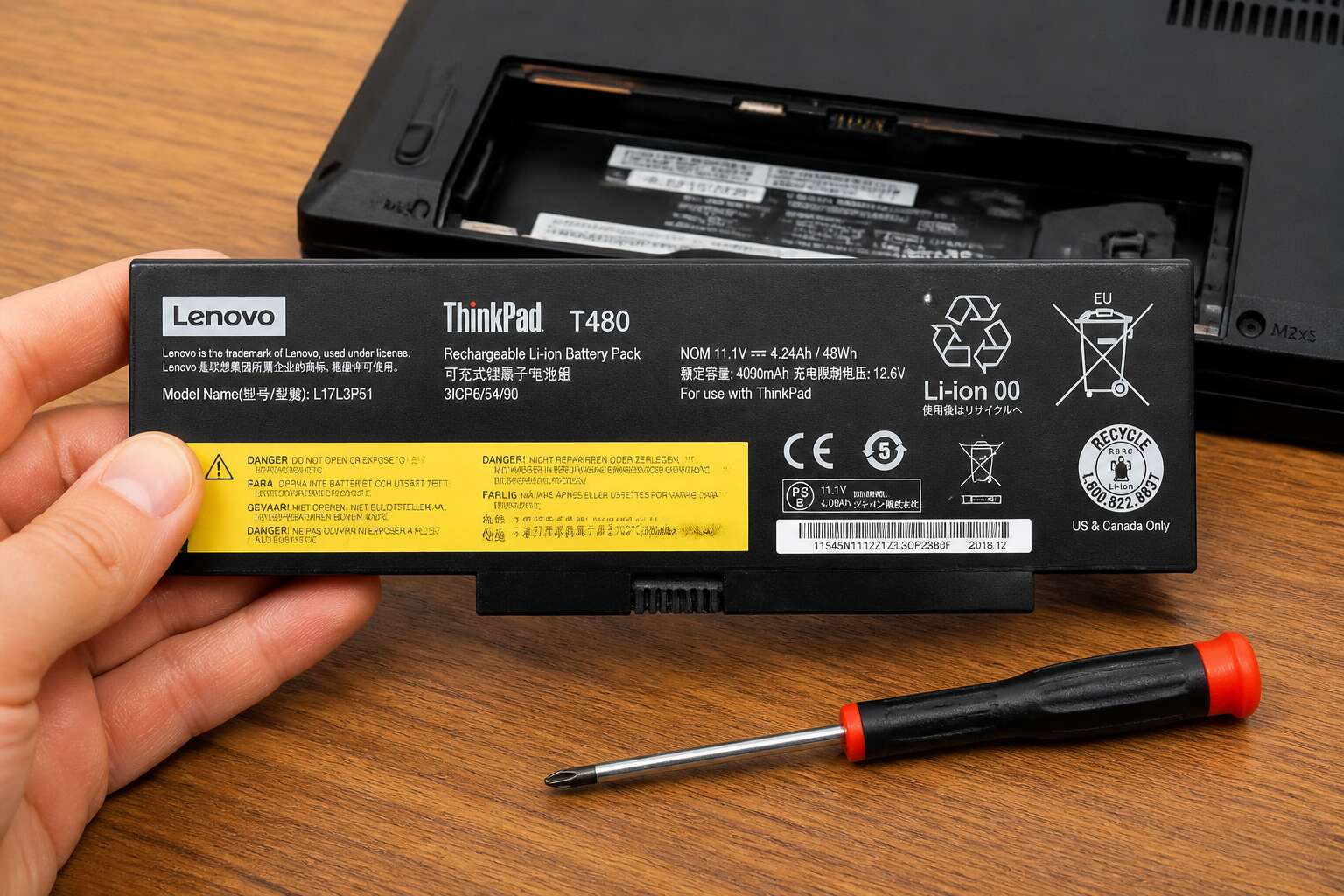
T480 Battery Specifications and Compatibility
Original Battery Models and Part Numbers
The original T480 battery options come with distinct part numbers that define their capacity and chemistry. For instance, the 24Wh internal battery pairs with an external 24Wh or 48Wh unit. Purchasing a laptop battery for t480 requires checking the FRU numbers, as Lenovo often changes revisions.
- 24Wh: SB10F46485
- 48Wh: SB10F46491
- 72Wh: SB10F46495
These part numbers ensure proper fitment. The 72Wh variant extends runtime significantly, but it protrudes slightly from the chassis. Compatibility depends on the laptop’s BIOS version. The Lenovo support database lists the latest revisions.
Battery Types: 24Wh, 48Wh, 72Wh, and Dual-Battery Setup
Few laptops offer the mechanical elegance of the ThinkPad T480’s dual battery system, and a laptop battery for t480 is rarely this configurable. An internal 24Wh cell remains fixed, while external units slide into the rear bay. The 72Wh variant extends runtime significantly, but it protrudes slightly. The BIOS manages charge thresholds, letting you cap the internal cell at a lower percentage to reduce degradation. You can hot-swap the external unit without shutting down, a practical advantage during travel. Typical configurations include:
- 24Wh internal plus 24Wh external for a slim profile
- 24Wh internal plus 48Wh external for balanced endurance
- 24Wh internal plus 72Wh external for maximum session length
This flexibility means the power management software prioritises the external battery first, preserving the internal cell as a backup.
How to Check Your Current Battery Health
Every T480 owner eventually faces the same question: which brick fits the slot? The answer matters more than you think. The laptop battery for t480 uses proprietary connectors, so a generic Dell or HP cell won’t work. Only Lenovo’s 61+ series fits the rear bay and the internal connector. This rule applies to both the 48Wh and 72Wh external units. Mixing old and new generations is a common mistake. A battery pulled from a T470 will slide in, but the system may throttle charging speeds or fail to report capacity correctly.
The fastest way to gauge your current tank is through Lenovo’s own diagnostics. You don’t need third-party tools for basic numbers.
1. Shut down the laptop and power it on, tapping F10 during boot.
2. Select “Hardware Scan” and wait for the component list.
3. Scroll to “Battery” and run the quick test.
4. Read the “Design Capacity” against “Full Charge Capacity.”
5. A ratio below 70% signals heavy wear.
That ratio is your real-world health score. A fresh laptop battery for t480 shows a 95% or higher ratio. If the full charge capacity sits at 40Wh on a 48Wh unit, you’re losing about 20% of runtime. The BIOS also stores charge cycle counts, accessible through the same tool. Keep an eye on the internal cell too. It powers the system during hot-swaps, and a dead internal battery forces a shutdown when you yank the external pack.
Physical Dimensions and Connector Types
The laptop battery for t480 uses a 13 pin connector that fits only Lenovo’s 61+ series. A Dell or HP cell will not slide in, and even a T470 pack only works if you enjoy throttled charging. External batteries come in two physical profiles. The 48Wh slab measures 220mm by 80mm by 12mm, while the 72Wh version adds 6mm of thickness. Internal cells, rated at 24Wh, measure 95mm by 70mm.
Compatibility hinges on the part number suffix. Older 61 units share the same latch but lack the revised thermistor layout, which confuses the power management firmware. Lenovo changed the internal connector pinout in 2018, so check the revision before ordering.
- 48Wh external: 220mm x 80mm x 12mm
- 72Wh external: 220mm x 80mm x 18mm
- 24Wh internal: 95mm x 70mm x 5mm
Signs That Your T480 Battery Needs Replacement
Rapid Battery Drain and Shorter Runtime
Every lithium ion cell has a finite lifespan, typically rated for a specific number of charge cycles. For the ThinkPad T480, once you surpass that threshold, the physical chemistry inside the battery degrades noticeably. The most obvious symptom is a rapid drain where the charge percentage plummets even during light tasks like word processing. You might watch the battery indicator drop from 80% to 30% in under an hour without any heavy processing.
The system also reports a far shorter runtime than you experienced when the unit was new. Several specific behaviors signal this degradation:
– The laptop shuts down unexpectedly when the reported percentage hits 20% to 30%.
– The charge level jumps down by 5% or more in a single minute.
– The battery becomes warm to the touch during charging, even when the system is idle.
– Windows warns about the battery level, but the system enters hibernate mode instantly.
These symptoms occur because the battery’s internal resistance increases as cells age, causing the voltage to sag under load. The power management firmware misreads this voltage drop as a depleted cell, forcing a sudden shutdown. When you encounter these patterns frequently, the search for a new laptop battery for t480 becomes a practical necessity rather than a precaution. The original capacity has simply been consumed, and the unit is no longer capable of sustaining the standard workday.
Swelling or Physical Deformation
Physical swelling is one of the clearest warnings that your laptop battery for t480 has reached the end of its usable life. When lithium cells fail, gas builds up inside the sealed casing, causing the battery to expand. The bottom cover may no longer sit flush against the chassis. The trackpad can feel stiff or uneven because the swollen battery presses upward from below.
Look for these visual cues:
- The rubber feet on the underside no longer touch the desk evenly.
- Screws near the battery compartment resist reseating or appear to pop out.
- The chassis develops a visible bulge along the seam.
A swollen battery strains the motherboard and keyboard assembly. In extreme cases, the casing splits open. If you see any of these signs, stop using the machine immediately and order a replacement laptop battery for t480. Continuing to charge a deformed pack increases the risk of leakage or thermal failure.
Charging Issues and Unexpected Shutdowns
The first whisper of trouble often comes when you press the power button and the machine greets you with silence, or when the charge indicator lamp behaves erratically. Your faithful companion, which once held a full day’s work in its cells, now stumbles at the simplest request. Charging issues manifest in strange ways. The percentage climbs to 80% and freezes there, stubborn and unmoving. Or the system reports that the battery is present but not charging, a confusing message that leaves you tethered to the wall socket, powerless to roam freely.
Unexpected shutdowns are perhaps the most dramatic signal. The screen goes black without warning, even though the meter showed 30% remaining. This happens most often under load, when the processor demands a surge of power that the aging cells cannot supply. The voltage dips, the protection circuit trips, and the machine dies mid-sentence. These sudden losses of power can corrupt files and interrupt critical work, transforming a simple productivity tool into an unreliable partner.
Specific charging failures to watch for:
- The battery percentage drops while the AC adapter is connected
- The charging light blinks in unusual patterns instead of a steady glow
- The system only charges when the laptop is powered off
- Windows or Linux flags the battery with an error code or warning message
What these symptoms reveal is a breakdown in the delicate chemistry within the battery. A failing laptop battery for t480 cannot maintain the voltage required by the system. It loses its ability to store energy efficiently, and the laptop’s power management firmware begins to misread the actual state of charge. The result is a device that behaves unpredictably, leaving you to guess whether it will last another hour or die in the next minute.
The internal communication between the battery’s management chip and the laptop’s controller also degrades over time. When this dialogue falters, the system cannot accurately gauge the remaining capacity. A battery that appears half full might actually be nearly empty. The laptop shuts down to protect the cells from deep discharge, a safety mechanism that works as designed but feels abrupt and jarring to the user. Each of these charging quirks and sudden power losses points toward the same conclusion. The internal resistance of the cells has risen too high, and the chemical capacity has faded beyond reliable service. When your laptop battery for t480 exhibits these behaviours routinely, the graceful silence of a proper shutdown becomes a distant memory.
Using Lenovo Vantage to Diagnose Battery Wear
Here is an unsettling statistic: your laptop battery for t480 can show a wear level above 30% and still power the machine for hours. Lenovo Vantage exposes the real numbers behind that illusion.
Open the application and navigate to the battery section. Check the wear level percentage and the full charge capacity. A healthy unit sits below 10%. When that figure climbs past 20%, the cell chemistry has degraded sharply. The software also flags a status of “Service” or “Replace” instead of the usual “Normal”.
- The discharge cycle count exceeds 500
- The full charge capacity is less than 60% of design capacity
These signs from Vantage give you precise data, not guesswork. Trust them, because the battery’s own firmware is telling you the truth.
How to Choose the Right Replacement Battery
Genuine Lenovo vs. Third-Party Batteries
Replacing the battery in your ThinkPad T480 is a decision that hinges on more than just price. The cost difference is stark, often a few hundred Rand for a third-party cell versus a premium for a genuine Lenovo unit. That gap represents far more than profit margins. It represents the fine line between a strict adherence to safety standards and a gamble on engineering shortcuts. For many users in South Africa, where import costs and logistics can complicate returns, this choice carries extra weight.
Inside a genuine Lenovo battery for the T480 lies a sophisticated embedded controller. This chip communicates with your laptop’s firmware, managing power delivery with precise calibration. It reports accurate wear levels on the built-in diagnostics, so a status shown in your system is not a guess. A third-party battery might work for months, but the energy capacity measurements can be erratic from day one. For a workhorse machine like the T480, which often serves as a primary daily driver, that predictability is a real asset, not just a theoretical benefit.
Consider the features you might lose with an aftermarket part. The keyboard’s Power Bridge functionality, which lets you hot-swap the external cell without shutting down, depends on proper voltage handshakes. A poorly manufactured pack can disrupt this delicate dance, causing the machine to hiccup or even refuse to switch power sources. For a mobile professional moving between meetings, this is a genuine operational risk.
When you weigh your options, the decision usually comes down to your workflow. You can evaluate your tolerance for risk against your budget needs.
– A new third-party battery for the T480 is often the choice for a secondary machine or a home server that never leaves a desk.
– A genuine Lenovo battery for the T480 is the safer investment for business travel, field work, or any environment where a sudden shutdown costs you more than the price of the part.
Third-party manufacturers are not universally poor, and some produce reliable cells. However, the variance in quality control between factories is far wider than Lenovo’s own supply chain. A $30 saving on the original price tag can quickly vanish if the replacement swells within six months or fails to hold a charge after a year. The promise of a two-year warranty is only useful when the supplier actually honors it, which is harder to enforce with an overseas seller. For many, the quiet confidence of an original part is worth the premium, ensuring the machine remains as dependable as the day it left the factory.
Understanding Capacity and Cycle Count
The capacity of a laptop battery for t480 is measured in watt hours, a figure that defines the theoretical energy reservoir. In practice, the cells degrade from the moment of assembly. The usable life is dictated by the charge cycles you press upon it. A cycle is not simply one plug-in. It is the sum of discharge, so using 50% today and 50% tomorrow counts as a single full cycle.
Understanding this metric is critical when you search for a replacement. A vendor may advertise a cheap third-party unit with a high capacity rating, but that number is meaningless if the cycle count is already high. Consider what your daily workflow demands before you choose.
- Check the reported cycle count through Lenovo Vantage on your current unit.
- Compare the physical size of the external cell against the advertised watt hour rating.
- Verify that the 72Wh option physically fits your model, as the larger cell protrudes slightly.
A pristine internal battery paired with a worn external cell still yields poor runtime. The embedded controller reads the weaker pack and adjusts its power draw accordingly. The cycle count of the external cell is the hidden ledger of your laptop battery for t480. It tells you how many times the lithium ions have been shuffled between electrodes. Each shuffle erodes the chemistry slightly, a process no software can reverse.
For a workhorse machine in South Africa, you want a unit with a cycle count near zero. The voltage sag under load becomes more pronounced with age, causing the system to switch sources prematurely. A fresh external cell with a low cycle count restores the seamless Power Bridge handshake, allowing you to swap packs without a shutdown. The number on the box matters less than the life left in the chemical core.
Warranty and Return Policy Considerations
Once you have verified the cycle count, the warranty becomes the next consideration for your laptop battery for t480. South African retailers vary in how they honour lithium pack claims.
A warranty tied to cycle count is worth more than one tied to months. Ask if the coverage includes natural degradation! Some vendors replace a pack only if it fails completely, not if it loses capacity.
- Confirm the warranty period in writing before payment.
- Clarify whether the return label is prepaid.
- Request a replacement unit to be dispatched first if possible.
The return policy matters because a physical mismatch surfaces after installation. This pack must lock into the chassis correctly. If the vendor requires you to ship to another province, you could wait weeks for a refund.
Power Bridge Technology: External vs. Internal Battery
Dropping in a fresh external pack while the machine hums along feels like a small act of rebellion against load shedding. For many South Africans, this hot-swap ability is the entire reason they seek out a specific laptop battery for t480 in the first place. It is a practical feature, not a gimmick.
The external battery sits on the rear edge, while the internal one lives beneath the chassis. You can remove the external unit without shutting down, provided the internal cell has some charge. This layered approach means you rarely experience absolute power loss. The internal battery acts as a buffer, a tiny reserve that keeps your system breathing during the swap. Most users ignore this internal cell, considering it a mere afterthought. That is a mistake. It is the silent partner in the Power Bridge dance.
Here are the scenarios where relying solely on the large external pack becomes a gamble:
– You are on a video call and the external battery hits zero, but the internal one is already depleted because you never charged it separately.
– You travel with a 72Wh external unit that adds heft, while a lighter 24Wh pack would suffice for a short flight, leaving the big one in your bag.
– You need to exchange a faulty unit under warranty, but a dead internal battery leaves you completely frozen while the replacement is en route.
A healthy internal battery remains your safety net for those brief moments of ejection. When you finally secure a new laptop battery for t480, take the time to verify that the internal unit also retains some capacity. If the internal cell is ancient and worn, the hot-swap capability is effectively useless. You would simply be losing power the instant you pull the external pack. The system treats these two power sources as separate entities, and managing them with equal attention yields the best runtime. Ignore the internal one, and you lose the very convenience that makes this laptop a favourite across Johannesburg and Cape Town.
Price Comparison and Value for Money
In South Africa, the price gap between a genuine Lenovo battery and a third-party option can be significant, often tempting buyers toward the cheaper shelf. Yet the real metric for value is not the initial price tag, but the cost per charge cycle over the lifespan of the unit. A cheaper laptop battery for t480 might fail after 200 cycles, while a pricier original could push past 800, making the higher upfront cost the wiser arithmetic over two years of daily use.
When comparing prices, consider what the warranty actually guarantees. A low-cost import might offer a six-month warranty, but the shipping costs to return a faulty unit often erase the initial savings. On the other hand, a local supplier with a proper replacement policy provides safety nets that keep your machine operational. I have seen buyers focus purely on the rand value, only to lose money on replacement logistics later. The value equation changes when you factor in hidden costs.
A practical checklist helps separate a bargain from a burden:
– Inspect the cycle count promise versus the price difference.
– Compare the warranty duration against the expected lifespan of the cell.
– Verify if the supplier ships a pre-installed internal battery option.
Spending a bit more on a reliable source secures the Power Bridge function for years. The internal cell, often ignored, is part of this calculation; if it degrades, your new external pack becomes a solo act. Assess both units before you pay, and the price becomes a reflection of true longevity, not just a number on a receipt.
Step-by-Step Guide to Replacing Your T480 Battery
Tools Required and Safety Precautions
Before you begin, gather the right tools. A precision screwdriver set, a plastic spudger, and an anti static wrist strap are essential. The T480 uses Phillips head screws, so confirm your driver matches. Work on a clean, well lit surface. Ground yourself to prevent static damage. Disconnect the AC adapter, then power off the laptop completely. Remove the external battery first, then the internal battery.
Here is a quick checklist for your workstation:
- Precision screwdriver set
- Plastic spudger
- Anti static wrist strap
- Magnetic tray
For the laptop battery for t480, always lift at the connector, never pry. Use even pressure to avoid bending the pins. Safety demands patience. Wait five minutes after powering off to let residual charge dissipate. Do not touch the battery contacts.
Removing the Bottom Cover Safely
The bottom cover removal is where most repairs go wrong. The T480 chassis uses fourteen Phillips screws, but not all are the same length. The three screws near the hinge are longer. Keep them segregated. A magnetic tray proves useful here.
Set the laptop upside down on a soft cloth. Begin at the rear edge. Insert the plastic spudger into the seam beside the ventilation grille. Twist gently to release the first clip, then work around the perimeter. The cover should pop free with steady pressure.
- Unscrew all fourteen Phillips screws.
- Separate the three hinge screws.
- Pry from the rear ventilation seam.
- Lift the cover upward, not outward.
Once the cover is off, locate the metal bracket over the internal battery connector. Remove its screws. Disconnect the cable with a vertical pull. At this point, the laptop battery for t480 is fully isolated. You can proceed without worrying about live circuits. The laptop battery for t480 swaps cleanly once the connector is free.
Disconnecting the Internal Battery Connector
With the internal connector free, the riskiest part of the procedure is behind you. The laptop battery for t480 now sits as an inert block of cells, disconnected from the motherboard and the charging circuit. You can handle it without the anxiety of a short circuit.
Lift the battery from its bay, keeping note of the ribbon cable that runs beneath it. This cable connects the trackpad and is easy to pinch when reinserting the replacement.
1. Pull the battery at a slight angle toward the rear hinge.
2. Clear the top edge first to avoid catching that ribbon.
3. Lift the rest of the pack upward and out of the chassis.
When seating the new unit, reverse that order. Slide the front edge in first, then rotate the rear down. The connector should click with a firm push, not a forceful shove. A gentle wiggle confirms the mating. Once the bracket is back over the connector, you are ready to reassemble the bottom cover. A fresh laptop battery for t480 should register immediately in the system upon boot, showing a charge percentage that matches its factory state.
Swapping in the New Battery and Reassembly
With the old pack removed, the bay sits empty, awaiting the replacement. I always check the ribbon cable again before inserting the new unit, as a single pinch here will cost you a trackpad.
Slide the front edge in first, then rotate the rear down. The connector clicks with a firm push. A gentle wiggle confirms the mating.
Reassembly follows a logical order.
1. Place the bracket over the connector and tighten the screw.
2. Align the bottom cover clips along the front edge.
3. Press the rear corners until they snap flush.
4. Replace the five captive screws.
When you power on, the system should register the laptop battery for t480 almost immediately. The charge percentage will reflect the factory state, confirming a successful swap.
Calibrating Your New Battery for Optimal Performance
After the swap, the battery gauge holds no reference points. Calibration teaches it precise boundaries, so the reported percentage matches the actual charge. This matters most for a laptop battery for t480 used daily.
Start by charging the device to 100 percent, then keep it plugged in for two hours. Next, disconnect the charger and run the laptop until it sleeps on its own, which forces the controller to mark the low threshold. Finally, charge uninterrupted to full.
The full sequence takes time:
- Charge to full and hold for two hours.
- Drain until automatic shutdown or sleep.
- Charge to full without interruption.
One repetition usually suffices, but two cycles establish the readings. The wear level in Lenovo Vantage then remains consistent.
Extending the Lifespan of Your T480 Battery
Adjusting Power Settings in Windows
Your laptop battery for t480 will not last forever, but Windows gives you control over how quickly it fades. The default power plan keeps components awake when they should rest. Open Settings, then System, then Power and Battery. Set the power mode to Best Power Efficiency for routine work. For deeper control, adjust the display and sleep timers under the same menu. A screen that stays lit for ten minutes drains more capacity than any processor task you will ever run. Change the critical battery action to Hibernate rather than Shut Down. This protects your data and prevents stress on the cells.
Consider these adjustments:
- Lower screen brightness manually; adaptive brightness still wastes energy.
- Disable background apps for email and social feeds.
- Turn off Bluetooth when not using wireless headphones.
The cumulative effect is surprising. A few minutes of configuration can add months to your battery’s usable life.
Battery Charge Thresholds in Lenovo Vantage
Your laptop battery for t480 spends most of its life plugged into a desk charger. That constant top-up keeps it at 100%, a state lithium cells find stressful. Lenovo Vantage includes a charge threshold setting that stops power at 80%. It sits under Power, then Battery, in the same app you use for diagnostics.
Set this limit and the battery works less. The external battery in your Power Bridge setup remains unaffected, but the internal cell maintains a healthier voltage curve over months of use.
You have two practical options:
- Start charge at 80% for daily office work.
- Disable the threshold the night before travel.
In my experience, that one change extends the usable lifespan of your laptop battery for t480 without any hardware work.
Best Practices for Storage and Temperature
Heat degrades your laptop battery for t480 faster than any other factor. Johannesburg summers and closed laptop bags can push internal temperatures past 35°C, accelerating electrolyte breakdown. Lithium cells operate best between 15°C and 25°C when idle, so find a cool desk spot away from direct sun.
For storage, avoid a full charge. A laptop battery for t480 stored at 100% for months loses capacity faster than one kept near 50%. If you leave the machine unused, charge to half, power down, and store it in a dry, shaded spot. Check the charge level every few months and restore it to 50% if it drifts lower. I have seen otherwise healthy batteries fail after a single hot summer in a car boot.
Internal temperatures rise during heavy loads, so keep the cooling vents clear and give the machine breathing room on hard surfaces.
Avoiding Deep Discharges and Overcharging
The most insidious habit for a laptop battery for t480 is waiting for the red screen of death before plugging in. Deep discharges to 5% or 0% impose severe mechanical stress on the lithium cells, expanding the anode and permanently reducing the capacity that software reports. You can buy a quality laptop battery for t480, but if you always drain it completely, you will prematurely age the chemistry.
Conversely, the other end of the charging spectrum is equally problematic. Leaving the unit tethered to a 65W adapter all day keeps the cells in a high-voltage state, which consumes the electrolyte even when idle.
– Treat the 20% to 80% range as your operating comfort zone.
– Set a calendar reminder to unplug after a few hours of work.
– Avoid using the machine as a desktop replacement without exception.
This constant top-up forces the charger to perform what is called a top-balance, which heats the tops of the cells more than a normal cycle. Forcing a laptop battery for t480 to always sit at 100% will eventually cause the BMS to misread the voltage curve, resulting in sudden shutdowns. Lithium-ion cells do not have memory, but they do have a finite number of charge cycles and a strong preference for mid-level voltages. Your day-to-day routine should therefore prioritize a periodic, controlled discharge rather than a complete one.



0 Comments