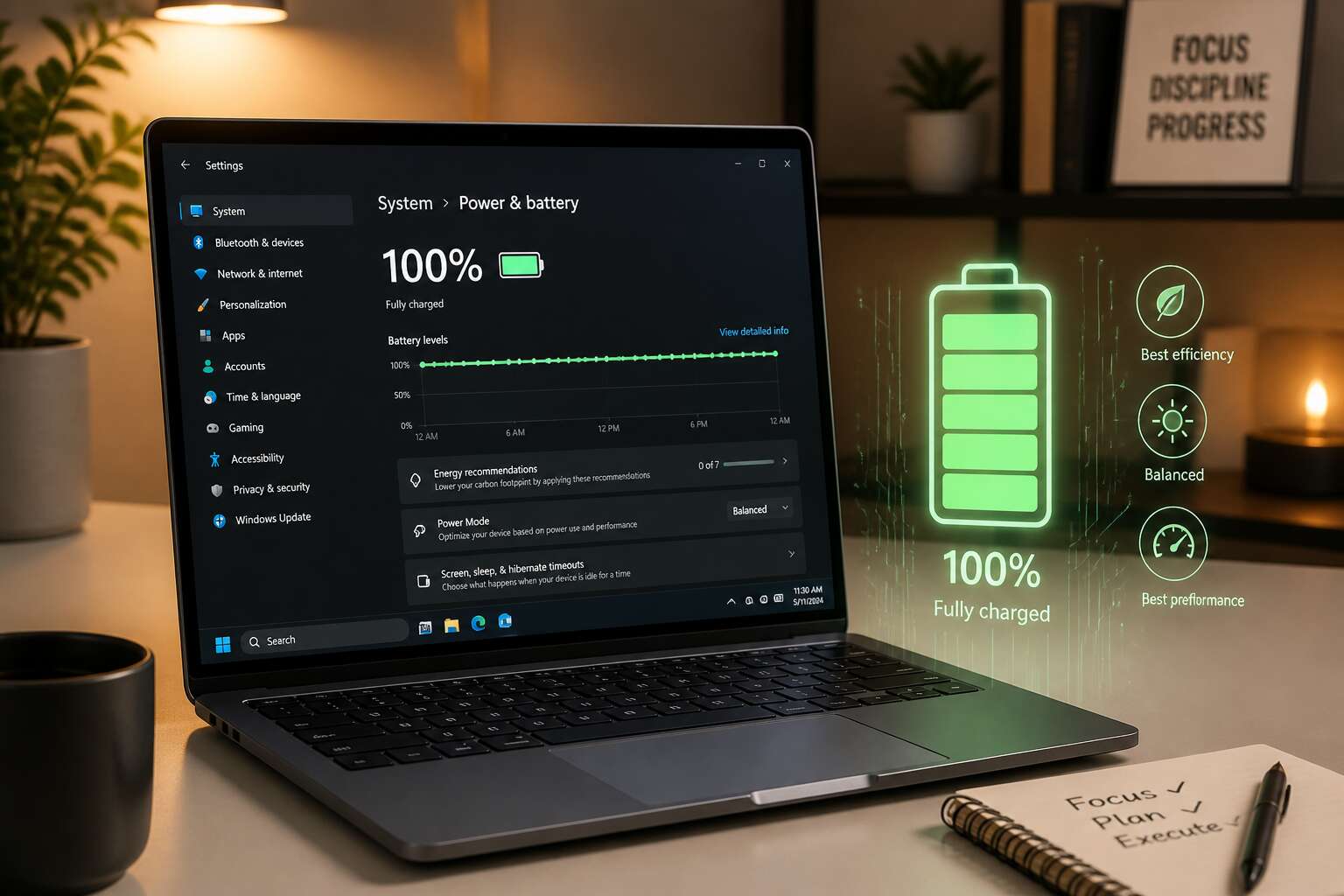
Understanding Laptop Battery Health
What Does Battery Health Mean?
Most of us treat our laptops like silent workhorses, expecting them to perform indefinitely. The reality is more delicate. Understanding how laptop battery health declines is the first step to respecting the machine you rely on daily. A battery is a chemical engine, and its capacity to hold a charge is a direct measurement of its internal condition. This is not a simple percentage; it is a complex metric that reflects wear on the anodes and cathodes within the cells.
When we talk about “battery health,” we are referring to the maximum charge the battery can currently store compared to its original design capacity. A new battery holds 100%. Over time, this figure drops due to charge cycles and temperature stress. The health percentage you see in your system settings is a calculated estimate, not a precise number. It triangulates data from your usage patterns and voltage readings. To gauge this yourself, consider these common indicators:
– The system reports a maximum capacity noticeably lower than the design capacity.
– The laptop shuts down unexpectedly despite showing a moderate charge percentage.
– The time required to reach a full charge becomes significantly longer than it was originally.
Regularly checking the battery health is essential for planning repairs or upgrades. It separates a perceived performance issue from a physical hardware problem. A healthy battery should deliver consistent power until it reaches the calibration point near empty. Once the chemical age exceeds a certain threshold, the software begins to interpret the wear. This interpretation dictates how long your unplugged freedom actually lasts. Knowing this metric grounds your expectations in physics rather than hope. It is the difference between a frustrating afternoon and a productive one.
Key Metrics: Charge Cycles and Capacity
Understanding laptop battery health metrics is a bit like reading a nutritional label; many numbers appear, but only a few determine your daily energy. Charge cycles and absolute capacity are those core figures. A charge cycle counts down from 100% as you use stored electricity. It is not about how often you plug it in, but how much total power you consume.
Here is the simplified math that dictates your laptop’s lifespan:
– You use 50% of the battery in the morning.
– You recharge to full.
– You use another 50% in the afternoon.
That sequence equals one complete charge cycle. The cycle count tracks the chemical aging process, but capacity measures the current size of the tank. To understand how laptop battery health degrades, you must watch the milliwatt-hours. That number is the standard for comparing against the factory specification. A significant variance here explains why your unplugged time has taken a nosedive, regardless of what the cycle count claims.
How Temperature Affects Battery Longevity
Lithium ion cells degrade faster at elevated temperatures. According to a 2020 study, an increase from 25°C to 35°C can accelerate capacity loss by nearly 40%. Heat breaks down the electrolyte, while cold triggers lithium plating. Both mechanisms physically damage the electrodes.
I saw this firsthand with a client in Pretoria. They left a laptop on a windowsill for one afternoon. The reported capacity dropped by 6% within a week. Consider the physical thresholds:
- Above 40°C, the separator may warp.
- Below 0°C, lithium plating can pierce the separator.
That is why temperature, not cycles, often dictates how laptop battery health changes.
The Role of Software and Firmware
It’s easy to point a finger at the battery itself when your laptop starts dying before lunch. But the real culprit might be the invisible traffic controller running the show behind your operating system. The firmware and software managing your power delivery can make or break your long-term charge retention. Think of it as the difference between a responsible supervisor and a colleague who leaves every light in the office on overnight. That silent decision-making is where the true story of how laptop battery health evolves over time.
Modern laptops rely on a small, dedicated microcontroller called the Embedded Controller (EC). This chip governs the charging curve, voltage limits, and thermal cutoffs. When a manufacturer updates this firmware, they are often tweaking the exact parameters that decide when your battery rests or works. A poorly optimized EC might keep topping off your cell to 100% even when you don’t need it, which adds unnecessary stress to the chemical layers inside. Conversely, a well-tuned EC will let the battery sit at a comfortable voltage when it knows you are plugged in all day.
Beyond the firmware, the operating system plays a significant role. Power profiles, background app usage, and even screen brightness algorithms all draw current. Here are the software habits that quietly drain your reserves:
– Unoptimized background tasks syncing large cloud files constantly.
– Browser extensions running hidden scripts that wake the CPU frequently.
– Obsolete drivers that prevent the system from entering low-power idle states.
– Aggressive “performance modes” that push voltage higher even for trivial tasks.
It’s important to realize that a battery is a chemical device, and software dictates how hard it is squeezed. If you run a CPU-heavy rendering app on max settings while charging, you combine high heat with high voltage. That double whammy accelerates the chemical wear faster than almost any other routine. Likewise, letting your laptop hibernate incorrectly or forcing sleep cycles that never actually engage can keep the active components running against your better judgment. The physical cell degrades naturally, but the software determines the speed of that decline.
Some users obsess over the charger they buy, yet ignore the power management suite that came with the laptop. That built-in utility often holds the key to longevity, offering features like an 80% charge limit or a slow-charge mode. Engaging those options is a simple way to shield the battery from daily micro-stress. The way your system requests power, negotiates with the wall adapter, and manages the trickle charge at 99% all factor into the long-term equation. When you search for metrics on how laptop battery health is measured, remember that the firmware often provides the very data you are reading through the operating system.
The physical environment still matters, and extreme conditions can override any software safety net. But a well-written power policy can mitigate some of the damage by throttling performance before a thermal event occurs. This is why a simple restart or a firmware update can sometimes magically extend a laptop’s stamina. It isn’t magic; it is smarter negotiation between the OS and the EC. The next time you see your battery percentage drain unexpectedly, consider the supervision before blaming the chemistry. That invisible logic might be the difference between a long-lived cell and a prematurely worn-out one.
How to Check Your Laptop’s Battery Health
Built-in Tools in Windows and macOS
A tired battery can turn your trusty laptop into a heavy paperweight. Before you consider a replacement, the tools to diagnose the issue are already hiding inside your operating system. These built-in utilities provide a granular look at wear and tear without downloading third-party software, which is always a smart security move. In Windows, you can generate a full battery report by opening Command Prompt and typing a simple command. For Apple users, the process is even more straightforward, hiding inside the System Settings menu. Both methods give you the raw data needed to understand how laptop battery health is trending.
To get the most accurate picture, you will need to execute a few specific commands. The following steps will help you locate the diagnostic tools:
– In Windows, press `Win + R`, type `cmd`, and hit Enter. Then, run `powercfg /batteryreport`. This tool saves an HTML file to your user folder.
– Find that file and open it in a browser to view design capacity versus full charge capacity.
– For macOS, hold the `Option` key and click the Apple menu. Select “System Information,” then navigate to the “Power” section to see the cycle count.
Your battery’s cycle count is the single most telling metric. It is a direct reflection of how many times the cell has been completely depleted and recharged. While a high number indicates age, a low number combined with a sudden drop in performance often points to a software glitch rather than a hardware failure. Checking these figures every few months provides a baseline, helping you spot problems before they become critical. Understanding how laptop battery health degrades over time allows you to adjust your charging habits, ensuring your device survives the long haul.
Using Battery Report Command on Windows
Ever wondered if your laptop is slowly losing its juice? It is a quiet process. One day, your battery lasts through three meetings. A year later, it struggles to survive one. Most people assume they need a new machine or an expensive repair. More often than not, the fix is understanding the data your system already tracks.
Windows has a hidden tool that gives you a full breakdown of your battery’s life. It is called the Battery Report. Think of it as a medical chart for your power source. It reveals the original design capacity versus your current full charge capacity. This gap tells you the actual wear and tear. There is no guesswork involved. You get hard numbers that show you exactly how much health your battery has lost over time.
To generate this report, you do not need third party software. You only need Command Prompt. Here is how to do it.
1. Press the `Win` key and type “cmd”.
2. Right-click on Command Prompt and select “Run as administrator”.
3. Type in `powercfg /batteryreport` and press Enter.
4. The system will generate an HTML file. It will tell you the exact file path where it saved it.
5. Open that file in your web browser.
The report displays two crucial figures. The first is the Design Capacity. This is how much charge your battery held when it left the factory. The second is the Full Charge Capacity. This is the current maximum charge. A healthy battery should have these numbers close together. If the full charge capacity is significantly lower, your battery is degrading.
Pay attention to the cycle count as well. Every battery has a lifespan. This number tells you how many times it has been completely drained and recharged. A higher count means more wear. Standard lithium ion batteries typically last for several hundred cycles before noticeable degradation. However, environment matters. If you frequently run your laptop in high temperatures, the chemical breakdown speeds up. This is why a machine kept on a hot car seat will age faster than one kept on a cool desk.
Use this report to plan your next move. If your capacity is at 80 percent, you still have decent usage left. If it drops below 50 percent, you will likely notice the shorter runtimes. At that point, a battery replacement is a smart investment. By checking this report every few months, you track the decline. You will know exactly when to act, rather than being caught with a dead laptop during an important deadline.
Third-Party Apps for Detailed Analysis
Most battery tools only tell you the current percentage. Third party apps go far deeper! They expose discharge curves, internal resistance, and cell voltages. That is the data you need to understand how laptop battery health evolves over months of use.
BatteryInfoView for Windows and CoconutBattery for macOS are solid choices. Both provide a wear level percentage and a cycle count. Some apps even log temperature during heavy loads. This matters because heat accelerates chemical aging.
- BatteryInfoView shows design capacity and full charge capacity side by side.
- CoconutBattery offers a live health indicator and history graph.
- BatteryCare tracks discharge cycles and estimates remaining lifespan.
Review these readings monthly. A sudden drop in capacity often signals a deeper issue. This tells you exactly how laptop battery health is trending. With this information, you can decide whether to replace the battery or adjust your charging habits.
Interpreting Battery Health Percentages
Seeing 80% on your battery meter can feel like watching a favourite jersey fade. That number, however, tells a deeper story about how laptop battery health translates into real-world usage. A percentage is not a verdict; it is a snapshot of chemical wear accumulated over hundreds of charge cycles.
When you interpret that figure, consider what it means for your daily routine. A 90% reading still offers hours of unplugged work. At 70%, you might start planning around power points. Below 60%, performance dips become noticeable during video calls or compiling code. The percentage alone does not reveal the full picture, but it does provide a baseline for expectations.
- Compare current capacity to the original design capacity
- Monitor how quickly the percentage drops during light tasks
- Track changes over several weeks to spot sudden declines
Paying attention to these patterns helps you understand how laptop battery health evolves, without needing a technical degree. The number is simply a guide, and treating it as such keeps you prepared for the inevitable ageing process.
Signs That Indicate a Failing Battery
Checking battery health holds up happens best in the everyday moments. You do not need a technical report to spot trouble. Switch off the charger and see what your battery does! Open the same apps you normally use, then watch the percentage drop. Sudden movements in that number tell you more than any feature.
- The laptop shuts down before the meter hits 20%
- The battery swells and the trackpad feels tight
- The base gets unusually hot under light work
- The charge jumps from 50% to 5% in seconds
I have watched batteries fail this way, and the pattern is always the same. Each sign indicates cells that are struggling to hold power. A failing battery often behaves erratically before it stops working altogether. Understanding how laptop battery health works helps you recognise these patterns early.
Best Practices to Prolong Battery Life
Optimizing Power Settings and Sleep Modes
A laptop battery is a consumable component, not a permanent fixture. Every full discharge cycle chips away at its total capacity, and the way you manage power settings dictates how quickly that degradation occurs. You do not need to obsess over every percentage point, but understanding the impact of your daily habits is essential. When you leave your machine plugged in at 100% for hours on end, you expose the cells to continuous high voltage, which accelerates chemical stress. This is a silent killer for longevity, more so than the occasional deep drain.
To truly master how laptop battery health is maintained, you must treat your power plan as a living configuration. The goal is not to cripple performance, but to balance responsiveness with electrical conservation. You can achieve this by tailoring the system to your workflow. For example, your screen is the largest consumer of energy, so setting a shorter display timeout when on battery power offers immediate rewards. Similarly, enabling aggressive sleep thresholds ensures that the device rests when you walk away, rather than slowly haemorrhaging charge in your bag while it is suspended in a hot, active state.
Consider these adjustments for a more robust approach to your system settings:
1. Reduce maximum processor state to 99% when unplugged. This small change disables turbo boosting, which prevents sudden, unnecessary spikes in power draw and heat generation.
2. Disable background apps that refresh continuously. Every sync and notification request wakes the radio and storage, introducing needless load.
3. Adjust your graphics card settings to prioritize integrated graphics for standard applications. The discrete GPU consumes significant power, even when idling.
A crucial component of this strategy involves your firmware, which oversees charging logic. Many modern systems include a built-in battery conservation mode or a custom charge limit. If you primarily use your laptop docked at a desk, setting a hard cap at 80% capacity can significantly extend its usable lifespan. This prevents the battery from residing in a state of highest electrical tension. Conversely, if you commute and need the full runtime, you can disable this cap. The key is to match the charging behavior to your physical location and daily patterns. Taking the extra step to unplug the adapter during intensive gaming or video rendering sessions also reduces heat, which is a notorious catalyst for cell breakdown. By implementing these practices, you actively influence the battery’s chemistry, ensuring it remains resilient for years rather than merely months.
Managing Charging Habits: Avoid 100% and 0%
A lithium-ion battery is a remarkable piece of engineering, but it is not immortal. Most users discover this the hard way when their dependable laptop begins to require a charger by mid-afternoon. The lifespan of these cells is finite, and the way we treat them daily dictates whether they last two years or four. When considering how laptop battery health degrades, the primary culprit is often our own charging routine, not the hardware itself.
The chemical reactions inside the cell are heavily influenced by voltage stress. A battery resting at 100% is under significant electrical tension, and heat generated during this state accelerates the breakdown of internal components. Conversely, draining the battery to zero before recharging forces the cell into a state of deep discharge, which can render it unable to hold a charge effectively. The sweet spot for longevity, however, is not a complex equation; it is about avoiding the extreme ends of the spectrum.
For those who use their laptop as a desktop replacement, keeping it tethered to the wall for continuous weeks is a common scenario. This practice, while convenient, keeps the cell in a perpetual state of high voltage. If your device offers a feature to limit the charge to 80% or 85%, enabling this setting is a prudent move for daily docked use. You are not sacrificing performance for most tasks; you are simply preserving the chemical integrity of the pack. When you know you will be traveling, you can then switch the setting to allow a full charge to get you through the day.
Managing the lower end of the battery meter is equally important. The habit of running the machine until it shuts down is a relic of older nickel-based batteries and does more harm than good to modern lithium cells. Instead, aim to plug in when the percentage drops to around 20% or 30%. This reduces the strain on the cell and ensures you are never caught in an emergency with a dead device. Environmental factors also play a role; a hot car dashboard in a South African summer can be far more damaging to a battery than a full charge cycle.
To maintain a healthy power source, consider these practical steps:
– Activate the built-in battery saver mode to limit background activity and reduce power draw.
– Avoid gaming or rendering intensive graphics while the laptop is plugged in and fully charged, as this combines high voltage with high heat.
– Remove the charger once the battery hits the designated limit, whether that is 100% for travel or a lower cap for desk use.
Ultimately, your goal is to reduce the time the battery spends at the absolute extremes of its capacity. Listening to the device and adjusting your habits based on your location, whether at a desk in Johannesburg or on a flight from Cape Town, will yield a longer useful life. Understanding how laptop battery chemistry responds to your routine allows you to make small adjustments that pay off in the long run. The goal is not to become obsessed with the numbers, but to manage the health of the component with a bit of foresight, ensuring your portable machine remains truly portable for years to come.
Keeping Your Laptop Cool and Ventilated
A staggering 80% of a laptop battery’s permanent capacity loss is driven by heat, not the number of charge cycles. When a device runs hot, the chemical reactions inside the cells accelerate, which leads to faster degradation before you even unplug the charger. This is a physical reality that cooling fans and modern chassis struggle to counteract during intensive tasks.
Location plays a pivotal role in managing thermal output. Placing a machine on a soft surface like a bed or a couch blocks the intake vents, and the device then recycles its own hot air. Hard desks or dedicated cooling pads allow for proper airflow. Also, keep the ambient temperature in mind. A room that is comfortable for you is usually safe for the hardware, but direct sunlight through a window can quickly create a hostile environment.
Understanding how laptop battery health correlates with temperature lets you make small adjustments. For instance, removing a protective shell case during heavy rendering can improve heat dissipation. Even a simple routine of cleaning dust from the internal fan every few months helps maintain optimal airflow, which in turn ensures your investment stays robust for years to come.
Disabling Unnecessary Background Processes
We’ve all been there: you close your laptop lid, convinced it’s sleeping, only to find it warm and gasping for power an hour later. That’s the sneaky work of background processes. They might seem harmless, but those invisible apps are quietly hammering your CPU and draining the very lifeblood of your machine. Understanding how laptop battery health is impacted by these digital parasites is the first step toward reclaiming your independence from the wall socket.
Think of your operating system as a bustling minibus during peak hour. Every app running in the background is a passenger, consuming energy and generating heat, which we know is the enemy of longevity. While you might have closed the browser window, a dozen helper processes might still be running, performing updates or syncing clouds. This constant activity prevents your processor from entering its low-power idle state. To fight back, you need to play the role of a strict conductor and eject the freeloaders.
You don’t need to be a tech wizard to take control. A quick trip to your Task Manager (Windows) or Activity Monitor (macOS) reveals the culprits sorted by CPU usage. You’ll often spot these common offenders:
– Cloud sync clients (Dropbox, Google Drive)
– Browser extensions running in the background
– Update checkers for installed software
– Chat apps launching at startup
Disabling these from starting up automatically is one of the most effective, cost-free ways to protect your hardware. It reduces unnecessary strain and keeps the internal temperatures down. By ruthlessly pruning these silent energy vampires, you directly influence how laptop battery health holds up over the long haul. Each percentage of power saved now is a full charge cycle preserved for later, ensuring your trusty companion remains viable for years, not just months.
Using Battery Saver Mode Efficiently
Battery saver mode acts as a silent guardian for your laptop’s longevity, yet many users dismiss it as a performance killer. The trade-off is often worth it. When activated, this feature automatically reduces screen brightness and throttles background activity, effectively slowing down the energy drain during those times when you’re far from an outlet. It gives you the power to stretch a dwindling percentage into precious minutes of work, which is often all you need to finish a report or reach your next meeting.
Understanding how laptop battery health declines is crucial, but applying the fix matters more. I tend to think of battery saver as a deliberate pause, not a permanent setback. You can customise when it kicks in, typically setting it to activate at 20% or 30% remaining. This way, your machine starts conserving energy long before the warning chimes scare you into action.
To really get the most out of this feature, you should pair it with a few simple habits:
- Adjust your display timeout so the screen sleeps quickly during moments of inactivity.
- Switch over to a lower refresh rate if your panel supports variable modes.
- Keep the battery saver toggle easily accessible in your taskbar for quick activation.
These steps minimise the load on your cells, ensuring that the capacity you have today remains intact tomorrow. Instead of waiting for a full battery failure, I recommend treating this mode as a standard part of your workflow. By doing so, you actively reduce the chemical stress that impacts how laptop battery health trends downwards over time. It’s a small control you have over a complex system, and using it consistently delivers long-term rewards.
Calibrating Your Battery Periodically
A battery that claims it has 20% left and then dies instantly is lying to you. That lie is why calibration exists. You do not need to do this every week. In fact, you should let the charge drop into the single digits perhaps once every two months. Let the machine power itself off and rest for a few hours. Then connect the charger and let it reach 100% without interruption. This resets the software gauge, separate from the physical cell, giving you a more truthful number.
This practice also changes how laptop battery health is tracked. It prevents the microchip from misjudging the remaining juice. When the meter reports accurately, you can confidently plan your day at a coworking space in Sandton or a café in Cape Town. You gain a clearer perspective on how laptop battery health declines, ensuring the percentage on your screen remains a reliable companion, not a wild guess.
Common Myths About Laptop Batteries
Should You Always Let Your Battery Drain Completely?
The belief that you must fully drain your laptop before charging persists, a ghost from the nickel-cadmium era. Modern lithium-ion cells do not suffer from the memory effect, making that ritual unnecessary. In fact, running a battery to zero regularly creates unnecessary stress that can accelerate capacity loss alert. A charge controller manages each cell; letting it hit zero forces a deep discharge that can destabilize internal chemistry else.
Some users also believe that leaving the laptop plugged in constantly harms it, but charge controllers stop the flow at roughly 100 percent. The real culprit is heat and overvoltage, not the act of plugging in. To preserve how laptop battery health performs, you should consider these behaviors:
– Keeping the device plugged in during heavy gaming sessions.
– Storing the laptop for months at full charge.
– Using high wattage chargers not designed for your model.
The tension between the old advice and physical reality stems from the fact that modern batteries prefer a partial state of charge. Whether you use a mac or a windows unit, the circuitry handles the nuance for you; your main priority is avoiding extreme conditions. This myth ignores the simple fact that durability comes from steady operation, not from theatrical discharges, and dispelling it matters for anyone monitoring how laptop battery health evolves over time.
Is It Bad to Leave Your Laptop Plugged In?
Leaving your laptop plugged in overnight is a common worry. You picture a swollen battery, overheated cells, a ruined lifespan. But the charging circuitry in modern machines disagrees. Once the battery hits full capacity, the power flow simply stops. The cable stays connected, yet the battery rests.
In my experience, the damage people attribute to this habit usually comes from other sources. Heat from demanding software matters. Charging past the recommended voltage matters. Cheap third-party adapters matter. Those factors affect how laptop battery health declines, not the mere act of keeping the charger attached.
Consider the signals:
- Does the laptop run hot while plugged in?
- Is the charger the one that shipped with the device?
- Does the battery report a high cycle count after months?
The common advice has some truth, but it misidentifies the culprit. Leaving the cord in the wall does not ruin a battery. The conditions around it decide how laptop battery health unfolds.
Do Quick Chargers Damage the Battery?
Quick chargers get blamed for ruining batteries, yet the evidence points elsewhere. When a charger negotiates power with the laptop, the charging circuitry limits voltage to safe levels. The real problem emerges when heat builds up during sustained fast charging, especially in warm rooms. In South Africa, summer temperatures push devices harder.
Manufacturers design quick chargers to stop the flow once the battery reaches a threshold. The fear often confuses correlation with causation. A deteriorating battery might fail around the same time you switched chargers, but the underlying issue is heat, not the charger itself. How laptop battery health declines depends on thermal management and charger quality.
Closing the Lid Always Saves Power
Laptop lids have become a habit loop. We close them and assume the machine is resting, but a laptop can remain awake in your bag with the screen off. Modern sleep states like Modern Standby on Windows can keep Wi‑Fi active, checking mail and syncing files while zipped up. This idle work quietly erodes how laptop battery health holds up over time.
What actually preserves power is understanding what runs during sleep. A standard sleep mode keeps the CPU and RAM powered. This is efficient, but background tasks can still trigger wake events. When the lid stays shut for days, the system may eventually drain to zero, which forces a deep shutdown. Those repeated low charge states have consequences for long term capacity.
The real drain culprits are often these:
– Wake timers, set by apps for updates or scheduled scans
– Peripherals that keep the system on edge, like a mouse or receiver
– Firmware policies that let the laptop check for updates while “asleep”
The lid is a convenience, not a guarantee. Closing it during a short meeting is fine. Closing it overnight with apps running is a different story. The myth treats the lid as a power switch, but the system’s state depends on software and hardware settings. Understanding that difference matters. It changes how you approach daily habits and what you expect from a battery report. A lid closed in a warm room, with the device stuffed in a bag, creates heat retention no power saving mode can fix.
When and How to Replace Your Battery
Identifying the Right Time for Replacement
Knowing precisely when to part ways with a tired battery is as crucial as maintaining it. A gradual decline in runtime is normal, but a sudden drop in capacity signals a deeper issue. If your laptop shuts down at 30% charge, or if the battery percentage jumps erratically, you are witnessing the final throes of a worn-out cell. This instability directly affects how laptop battery health translates into everyday usability, turning a portable workstation into a tethered desktop.
The physical signs are equally telling. A swollen trackpad or a chassis that no longer sits flush are warning lights you cannot ignore. These symptoms point to a battery that is expanding, a condition that can damage internal components. When you notice this, the replacement process is not a matter of convenience but of necessity. You can find the exact model number on the underside of the device or in the system information panel, a simple step that ensures you buy a compatible unit.
Replacement is often a straightforward task, though it requires patience. Many modern laptops have a secured bottom panel that comes off with a standard screwdriver. Once inside, the battery is usually connected by a single ribbon cable. Disconnect it, remove the old unit, and slot the new one in place. If the design looks intimidating, a local repair shop can handle the swap quickly, as they have the right tools and spare parts on hand.
After installation, your system may need a full discharge and recharge cycle to calibrate the new cell. This initial step helps the firmware accurately gauge the remaining power. Remember, preserving the longevity of the new unit starts with sensible charging habits. Treat this new component with care, and you will extend your laptop’s serviceable life considerably, avoiding the cost of a full machine upgrade.
Choosing Between OEM and Third-Party Batteries
DIY Replacement vs. Professional Service
When your laptop refuses to hold a charge, replacement becomes a choice between your own patience and a technician’s expertise. Understanding how laptop battery health degrades helps you judge whether a simple reset will suffice or if the cell itself has expired. Modern ultrabooks demand professional service, while older business laptops often allow confident DIY work.
- Check if your model has a removable panel
- Verify the correct battery part number
- Inspect the old cell for swelling
Professional technicians possess diagnostic software to test the replacement’s capacity. They can reset the embedded controller, which directly influences how laptop battery health is reported to the operating system. For South African users, spare part availability and import duties often tip the balance toward a local repair shop. A botched DIY attempt may void your warranty, while a certified technician offers a guarantee on both parts and labour.
Proper Disposal and Recycling of Old Batteries
Battery degradation is a silent tax on your mobility. Every charge cycle chips away at the chemical capacity inside your cell, and eventually, the numbers become undeniable. When your runtime drops below an hour on a full charge, or the laptop shuts down at 20% battery, the unit is not malfunctioning; it is exhausted. Ignoring these signs can lead to sudden data loss during critical work.
Recognizing when to intervene is straightforward if you monitor the trend. A healthy battery often tolerates hundreds of cycles. Once the maximum capacity dips under 80% of the design specification, the cell will struggle to support modern processor demands. Physical changes are equally telling. A swollen trackpad, a slight bulge in the chassis, or a casing that no longer sits flush are clear red flags. Do not delay; a compromised lithium-ion pack is a fire risk, not just a performance issue.
When the time comes to retire the battery, the process changes depending on your location. In South Africa, municipal waste systems rarely accept these components in standard bins. Lithium cells sent to landfills leak toxic electrolytes into the water table. Instead, follow a strict protocol for safe handling:
1. Power down the device and disconnect the adapter completely.
2. Remove the battery carefully, using insulated tools if the pack is glued.
3. Tape the metal contacts with non-conductive electrical tape to prevent short circuits.
4. Deliver the unit to a certified e-waste recycler or a retailer take-back program.
Never toss a spent battery into a fire or a regular refuse bag. The internal chemistry is volatile when punctured. By treating the disposal process with the same rigor as the maintenance routine, you protect both your hardware and your environment. Tracking how laptop battery health declines over time is only the first step; responsible end-of-life handling completes the loop.




0 Comments