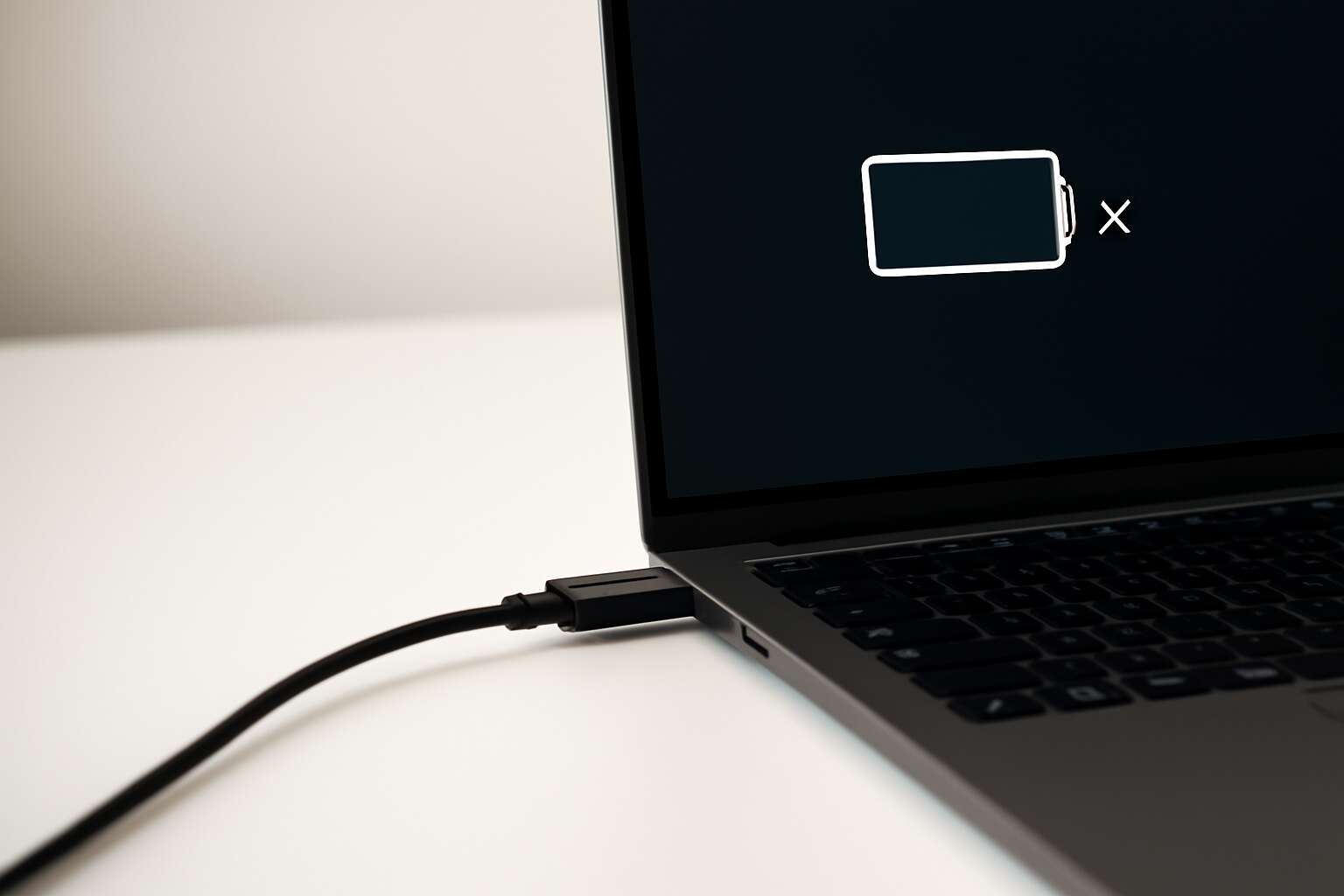
Understanding why a laptop battery is not charging
Battery health and wear levels
Battery health is more than a buzzword. In South Africa, when laptop battery is not charging, productivity slows to a crawl while the cursor winks in the corner. Li-ion batteries typically shed about 20% of their capacity in the first two to three years of use.
Wear levels measure how much a battery has aged. A lower usable capacity per cycle and a rising cycle count mean the power bank inside your laptop has begun to slack off. Firmware and sensors may also misreport health as cells drift with time.
If you’re puzzling over what happens when laptop battery is not charging, wear is usually the culprit.
- Cycle count creeping past design limits
- Reported capacity dipping below original
- Calibration drift or inconsistent charging behavior
Charging port, cable, and adapter inspection
Power can vanish in seconds, turning a high-stakes workday into a quiet standoff with the cursor. When laptop battery is not charging, the culprit often sits outside the battery itself, lurking in the hardware that feeds it—a port, a cable, or the brick that powers it. The suspense isn’t about a ghost in the machine; it’s about loose connections and worn components that betray you at the worst moment.
Understanding where the trouble lies begins with a careful look at the charging trio: port, cable, and adapter. Signs aren’t flashy, but they speak volumes: debris or bent pins in the port, a frayed or stiff cable, or an adapter that runs hot and inconsistent.
- Port debris or misaligned pins
- Frayed insulation or exposed conductors on the cable
- Adapter overheating or delivering unstable voltage
In South Africa, where plug standards and power fluctuations can test equipment, these components bear the brunt of daily use. When the issue persists, the narrative often shifts from the battery to the supporting cast—the port, the lead, and the brick—whispering that the fault is more mechanical than mathematical.
Battery charging circuitry and BIOS implications
In some cases, when laptop battery is not charging, the fault sits in the gatekeeper, not the cells themselves. The charging circuitry coordinates current, voltage, and safety thresholds, and it talks to the power management logic to decide whether to top up the pack. If anything looks off—thermals, misreadings, or a refused handshake—the charger refuses to deliver a charge.
Bearing the load are the BIOS/UEFI and the firmware that govern charging policies. Battery charging circuitry relies on firmware signals to read the battery’s state and apply the right profile. A glitch in this layer or an out‑of‑date firmware can cause charging to stall or oscillate.
- Power management interface alignment
- Battery status reporting accuracy
- Firmware/BIOS power policy
In South Africa, where power fluctuations are common, the dance between circuitry and BIOS can become obvious. The issue may point to a systemic fault—software, firmware, or hardware—rather than a simple battery fault.
Common causes by age, temperature, and usage
Power fluctuations in South Africa have a knack for turning technical mysteries into theatre. The issue—when laptop battery is not charging—often hides in aging, heat, and heavy daily use rather than dramatic cell failure.
Common causes cluster around three drivers. To make the picture clearer, consider this quick breakdown:
- Age and natural wear reduce capacity and charging responsiveness
- Temperature swings—too hot or too cold—can stall acceptance of a charge
- Usage patterns that drain and replenish aggressively or sporadically
- Firmware quirks or software conflicts that misread the pack’s state
In the South African context, a snag here can look systemic rather than battery-specific, with the broader power environment as the enabler. The drama continues behind the scenes, in firmware, drivers, and the quiet arithmetic of energy and endurance!
Indicators and error messages you might see
Nothing beats the moment you notice when laptop battery is not charging, and the notification is louder than the fan. In South Africa, where power reliability is part of daily life, that alert is more than a nuisance—it’s a signal. Inside the OS and firmware, a handful of indicators let you read the room without turning it into a guessing game.
- Battery icon or status badge showing a caution symbol or a “charging paused” message.
- On-screen alerts such as “Plugged in, not charging” or “Battery is low, plug in power source.”
- BIOS/UEFI warnings at startup like “Battery health degraded” or “Charging disabled” depending on your model.
These signals hint at age, temperature, or firmware quirks and point toward the right diagnostic path.
Practical checks to perform before deep troubleshooting
Power supply and outlet verification
Power is the heartbeat of a laptop, and in South Africa the mains can be a fickle companion. Voltage fluctuations creep into charging sessions more often than you’d expect, turning routine plugs into a nerve-wracking moment. A shaky power source can mimic a battery fault and distort the diagnosis.
If you’re asking what to do when laptop battery is not charging, start with checks.
- Testing the wall outlet with a known device helps rule out voltage drop from strips.
- Inspect the adapter and cable for wear; swapping to a compatible charger if available confirms supply stability.
- Note the adapter’s indicator light and verify output with a multimeter if safe.
Also check the setup—avoid extension cords and ensure the plug sits firmly. If the light stays dark, you’re chasing a power handshake, not a dying battery.
Battery status in BIOS/UEFI and OS checks
Before diving into hardware, quick checks set the scene. In South Africa, power irregularities blur charging sessions. (when laptop battery is not charging), the first clues often lie in software and firmware rather than raw chemistry. Practical checks before deep troubleshooting reveal whether the tale is a hungry battery, a shy BIOS, or a misbehaving driver.
Within the BIOS/UEFI, many laptops show a battery status page that hints at design capacity, remaining charge, and whether charging is allowed. The OS can also reveal battery health, power plan behavior, and driver status. If these signals disagree, software power management or firmware reporting could be the culprit.
By mapping these signals to the device’s environment—office, home, or on the road—you craft a precise reading of the battery’s mood. The aim is clarity, not panic; to await signals from firmware or drivers that harmonize the handshake between battery and motherboard.
Resetting the charging system and battery calibration steps
Power in South Africa is famously unpredictable, and that chaos spills into laptop charging. If you’re wondering when laptop battery is not charging, sometimes the fix is soft—resets and calibration can realign battery and motherboard. Practical checks set the scene for deeper troubleshooting.
Resetting the charging system clears the handshake and can restore normal behavior without opening the case. A quick calibration helps the system read the battery life more accurately.
- Shut down the laptop, unplug the charger, and if removable, reset the battery connections.
- Plug into a known-good outlet with the original charger to avoid voltage dips.
- Charge to 100% and then perform a gentle discharge to around 5–10% before recharging again.
These checks keep the narrative calm and point toward firmware or drivers misreporting the charge state.
Inspecting physical connections and ports for debris or damage
In a city that never forgives chaos, power is a fickle ally; when laptop battery is not charging, it becomes a chilly pause that tests patience and poise.
Practical checks begin with a careful gaze at the port and its companions.
- Dust, lint, or debris visible in the charging port
- Discoloration, corrosion, or signs of moisture around connectors
- Bent or misaligned pins on the plug or on motherboard contacts
- Loose seating or wobble when the charger is plugged in
These visual cues reveal the physical layer, where a tiny misalignment can ripple through the device. In South Africa, tending to port health keeps momentum with grace.
Driver and firmware updates for charging components
Power moves fast in a city that never forgives chaos, and when laptop battery is not charging, that pause can feel like a cold fuse in the system. Before diving into deep troubleshooting, it helps to listen to the quiet signals from the software layer that governs power, not the wires.
Driver and firmware updates for charging components can shift performance, sometimes unlocking a stubborn draw. They live behind the scenes, yet they shape how power negotiates with the battery.
- BIOS/UEFI firmware versions
- Battery management and charging controller drivers
- System chipset and power management software
On the ground in South Africa, tending to these updates helps you ride through load shedding with fewer surprises.
Power is patient here, and a software polish can restore flow even when energy cycles are unreliable. A quiet software audit can help when laptop battery is not charging, tipping the balance.
Temporary workarounds you can try safely
Power moves fast in a city that never forgives chaos, a reality many South Africans know during load-shedding cycles. Before diving into deep troubleshooting, listen to the quiet software heartbeat that governs power. The moment when laptop battery is not charging, the OS’s subtle signals can reveal whether the issue hides in software, not the wires.
- Examine the active power plan and energy-saving policies to see if charging is unintentionally throttled by software.
- Consider recent updates or background processes that might influence charging indicators without touching hardware.
- Compare behavior across user profiles to rule out session-specific settings that affect power negotiation.
- Review any third‑party battery managers or driver utilities that could conflict with the built‑in charging system.
Temporary workarounds you can try safely stay within this exploratory frame: observe how subtle changes shift the charging indicators, keep data intact, and avoid hardware manipulation while you map the software terrain.
Device-specific considerations by operating system
Windows charging issues and fixes
Windows and power share a long, arcane romance. In the realm of Windows, when laptop battery is not charging, the culprit often hides in the simplest settings and software quirks. A wary tech sage notes that a stubborn power plan or a charging profile tucked in vendor utilities can misread the battery state. A quiet reboot and a reset of the power configuration often restore balance and reveal the true charge path.
- Ensure the Windows power plan is set to Balanced or High performance for plugged-in operation.
- Disable any OEM charging limiter tools temporarily and reboot to apply changes.
- Run powercfg /batteryreport from Command Prompt to inspect charge history and look for anomalies.
Across South Africa, these Windows-specific checks are practical, readable, and quick to perform, bridging myth and method without forcing you to chase shadows.
macOS battery management and SMC reset
Power hums like a memory of a long road; macOS treats battery life as a craft, where elegance meets engineering. When laptop battery is not charging, Apple’s battery management uses learning algorithms and hardware signals to protect longevity while sustaining work tempo. In System Settings, Optimized Battery Charging and visible battery health indicators offer a sense of control without fuss.
- System Management Controller (SMC) reset on Intel Macs shapes charging behavior and thermal response, particularly when laptop battery is not charging.
- Optimized Battery Charging reduces peak charge states and aligns power delivery with your routine.
- Apple Silicon devices manage charge differently, with a focus on firmware-level efficiency and seamless sleep-wake cycles.
In South Africa, this macOS design philosophy stays humane, guiding users with clear indicators rather than panic when the charger misbehaves. Understanding that the handoff between software and hardware explains much of the experience makes the journey less intimidating.
Linux battery interfaces and kernel updates
A surprising 68% of users report friction when power cords falter mid-session, a reminder that charging is a dialogue between hardware and software. When laptop battery is not charging, Linux laptops reveal a living map of ACPI signals and kernel drivers at work. This process is a quiet tempo that defends momentum even under pressure.
Device-specific considerations by operating system come into sharper focus on Linux, where battery behavior rides the kernel’s firmware interface and device quirks. Kernel updates can shift charging envelopes, driver stacks can re-route power paths, and power-management tools decide how aggressively to intervene.
- ACPI and sysfs interfaces shape charging state
- Kernel updates may shift driver behavior
- Open-source power tools influence charging profiles
For readers in South Africa, the open-source rhythm feels humane, turning a hiccup into a readable story that respects the pace of work when laptop battery is not charging.
Battery calibration and management settings across platforms
Device-specific considerations by operating system reveal how the same stubborn hardware wears different masks. In Windows realms, calibration quirks can warp reported cycles; macOS quietly tames voltage with SMC sensibilities; Linux reads through a living kernel, interpreting signals without ceremony. Case in point: when laptop battery is not charging, the OS may reveal fault lines in the reporting.
Across platforms, battery calibration and management settings shape how long momentum lasts. Subtle thresholds determine charging resumes around heat, how discharge is permitted, and how bravely the system preserves health. Listen to the machine’s whispers—the firmware, the drivers, and the power daemons—each speaking a different language in the dim glow of a screen.
Warranty, servicing, and replacement options
Power reliability and service networks shape how problems are solved in South Africa. The moment when laptop battery is not charging becomes a test of warranty pathways and OS-driven support routes. Device-specific considerations by operating system determine whether repairs stay within coverage or move to a paid service plan, with Windows, macOS, and Linux each speaking a different language in repair terms.
Warranty, servicing, and replacement options may include:
- Manufacturer warranty coverage for Windows-based devices from OEMs
- AppleCare or authorized service for macOS machines
- Authorized regional repair centers and replacement options for Linux laptops
These channels ensure that the user isn’t stranded when hardware or firmware issues blur the line between software settings and device health.
Fixes, replacements, and preventive practices
Battery replacement and service options
Battery drama is real: when laptop battery is not charging, it can derail your day faster than a SA traffic jam. But a quick audit of the basics can unstick things without fuss, because the issue rarely hides where you expect it.
- OEM battery replacement through authorized South African service centers to preserve warranty
- Certified repair shops offering battery diagnostics, calibration, and safe pack swaps
- On-site or drop-off options with warranty-backed components for peace of mind
Preventive practices and service options emphasize choosing quality components, staying within temperature ranges, and keeping firmware up to date—plus routine checks when the laptop’s power behavior shifts. In SA, reputable service centers can provide long-term solutions and transparent warranties.
Preventive care to extend battery life
When laptop battery is not charging, the day stalls like a SA sunrise train—dramatic, yet misleading. A quick audit of the basics often reveals the fault isn’t hiding where you expect, and patience tends to unstick the day.
Fixes, replacements, and preventive practices unfold as three acts in a measured drama.
- Fixes: professional diagnostics untangle the charging path from firmware quirks and wear.
- Replacements: reputable SA service centers offer OEM batteries with transparent warranties.
- Preventive practices: quality components, careful temperature management, and regular firmware checks guard against future stumbles.
With reliable partners and ongoing monitoring of battery status, a moment of doubt can melt into quiet confidence. You’ll discover that clarity replaces mystery in the electronics that power your workday.
Safe data backup and preparation before repair
Across South Africa’s desks, when laptop battery is not charging, momentum falters but clarity returns with patient hands. A quick audit reveals wear rather than doom—the drama calms, the path becomes clear.
Fixes: professional diagnostics untangle the charging path from firmware quirks and wear, with careful testing of ports and boards. when laptop battery is not charging, this disciplined sweep uncovers a simple hiccup before replacement.
Replacements: reputable SA service centers offer OEM batteries with transparent warranties and clear service terms, ensuring compatibility and safety.
Preventive practices: invest in quality components, keep temperatures moderate, and maintain firmware health. Safe data backup and preparation before repair matter—the shield that keeps your work intact while the charging system is fine-tuned.
- Back up essential files to a trusted cloud or external drive.
- Capture BIOS/OS settings and photograph cables and ports.
- Disconnect peripherals and note any recent firmware updates before service.
When to seek professional repair and warranty considerations
Fixes: If you observe when laptop battery is not charging, professional diagnostics untangle the charging path from firmware quirks and wear, with careful testing of ports and boards. The tension fades as the fault reveals itself and a clear route emerges.
Replacements: Reputable SA service centers offer OEM batteries with transparent warranties and clear service terms, ensuring compatibility and safety and giving you confidence that a swap won’t invite new headaches.
Preventive practices: Invest in quality components, keep temperatures moderate, and maintain firmware health to keep your machine humming through long SA days.
- Quality components
- Moderate temperatures
- Firmware health




0 Comments